We are going to install a GNU/Linux based operating system in a virtual machine.
Install a virtual machine software.
Download the installation media
We are going to install Debian as it is small and stable.
Install Debian
Use this ISO image as installation medium in virtual box (like a virtual CD). Your empty machine will boot on it and start the installation wizard.
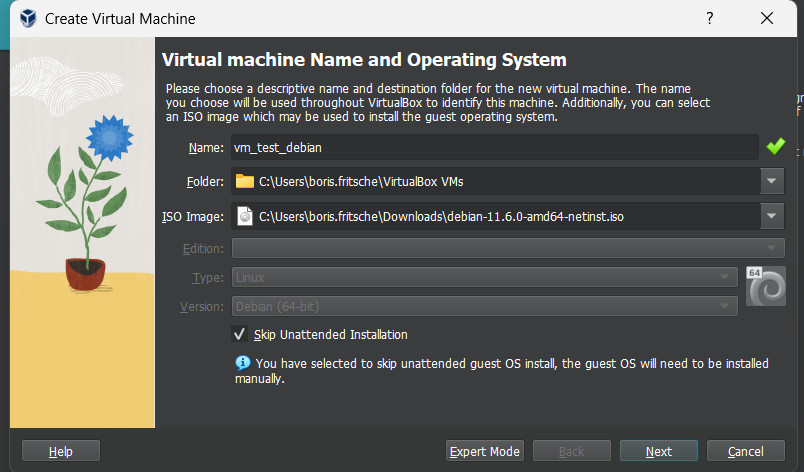
Follow the prompts or get help from a more detailed tutorial.
Root password and user password must not be the same!
Some options you will need to set:
Keyboard:             swiss french
Hostname:             debian
Domain:               lab.local
User Account:         debian
Partition Disk:       use entier disk / all files in one partition
Desktop Environment:  optional, we only require a shell.
Once successfully booted and logged in continue.
We will test the power of snapshots which are like save games in a video game or previous verision of documents in Word, but for a full machine.
Create a snapshot / checkpoint in your virtualization software.
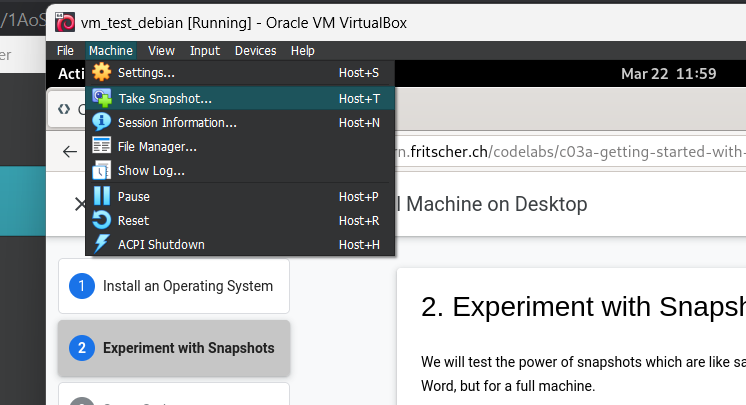
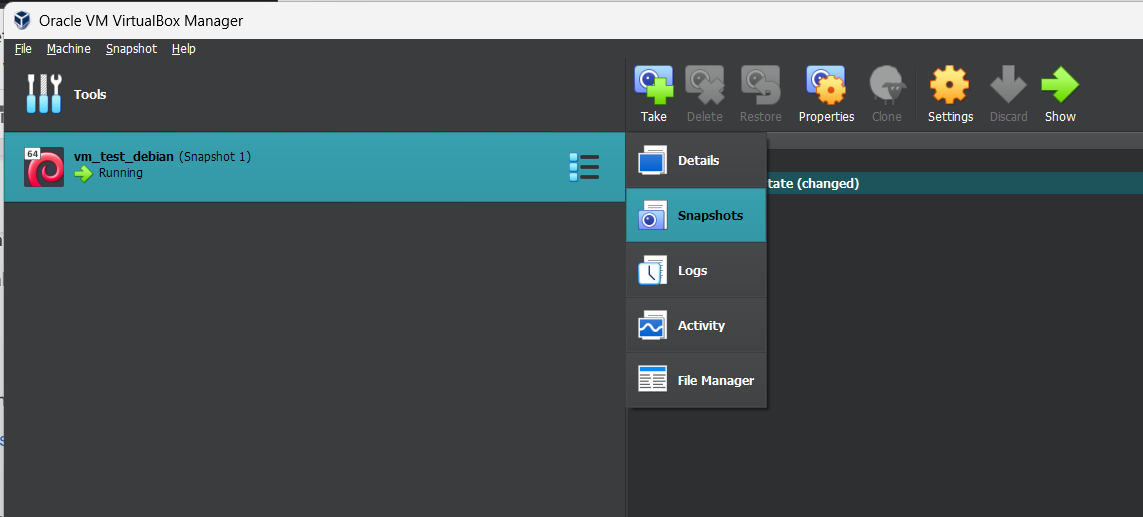
Experiment
Now let's have some fun inside your VM.
Open a terminal window inside your VM or connect directly to the shell if no desktop environment
Become root and provide root password
$ su -
Be destructif
$ cd /
$ rm -rf *
What happened? ☠️
Restore Snapshot
The virtual machine must be stopped
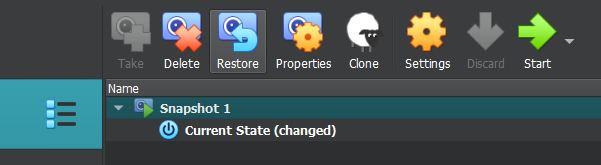
And like that we are back running without losing anything!
In order to not share the root password, but still allow user to execute privileged commands we will use sudo.
Let's add our debian user to sudoers.
This can be done by adding him to the sudo group. We first need to use root account and password one last time to do this.
$ su -
$ usermod -aG sudo username
$ exit
For this to take effect we need a new login session. We can then verify that we are debian user and have the sudo group in our groups
$ su - debian
$ whoami
$ groups
Let's test our sudo privileges.
$ sudo whoami
What is the answer?
We will install our guestbook app on this virtual machine.
Install Python
First update package dependencies and install python3 and git.
$ sudo apt-get update
$ sudo apt-get install python3 python3-pip python3-venv git
Install Guestbook
You will now need to install the guestbook app as you have done previously on your own machine. Clone the repository, create the virtual environment, install python dependencies.
Refer to your notes or previous codelab!
$ git clone https://github.com/bfritscher/guestbook-src.git
Once Flask is started it will display the external ip:port on which you can connect from your host machine.
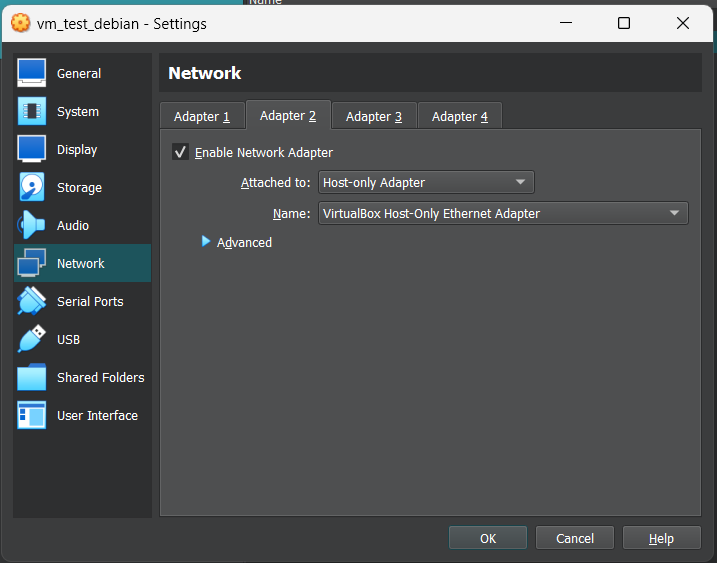
We will switch to a PostgreSQL database backend.
Install PostgreSQL
$ sudo apt-get install postgresql postgresql-client
By default postgresql is only accessible with the postgres user account and locally.
Let's connect to it and create a database and a dedicated user for our guestbook.
We will use psql client program to interact with the database and send SQL commands.
$ sudo -u postgres psql
postgres=# CREATE DATABASE guestbook;
postgres=# CREATE USER guestbook WITH ENCRYPTED PASSWORD 'mypass';
postgres=# GRANT ALL PRIVILEGES ON DATABASE guestbook TO guestbook;
postgres=# ALTER DATABASE guestbook OWNER TO guestbook;
postgres=# \q
Test Guestbook
Switch the guestbook app to use PostgreSQL backend. This can be done by creating a .env file with the correct connection information (copy the .env.sample file and verify the information).
DB_HOST will be localhost since the database and the application are running inside the same virtual machine. The other connection information will depend on the setting you used in the previous step.
Open the browser (http://<hostonlyip>:5000) and write a first message. Then exit the application and restart to test it again.
Do the entries persist when restart?
Verify database
After entering some guestbook entries lets look for them in the database.
- Reconnect to postgres
- Switch database
- and perform SQL queries
$ sudo -u postgres psql
postgres=# \c guestbook
postgres=# \d
postgres=# YOUR SQL QUERY HERE to list the entries inside the table;
What is the SQL query to display all rows from entries table?
You now have a dedicated machine for your guestbook application with a database.
Task Progress
Take a screenshot showing the SQL query result (showing your two messages) and the virtual machine window and submit below.