Containers effectively implement a virtual operating system on top of a real one. Multiple containers can share an underlying real operating system in a manner that requires a lot less overhead than using multiple virtual machines to do the same. In this lab, we will use Docker, the defacto standard for building and running containers, in order to containerize the guestbook application. This will generate a container "image", a blueprint that will allow us to instantiate multiple containers with identical run-times. Container images can be stored in repositories on a registry such as Dockerhub (docker.io), or GitHub Packages much like source code can be stored in repositories such as Github.
In order to run docker, however, you must have administrator access. On your machine or within a VM that you set up for the course, clone the repository and change into the directory containing the code.
git clone https://github.com/bfritscher/guestbook-src
cd guestbook-src/04_container_docker
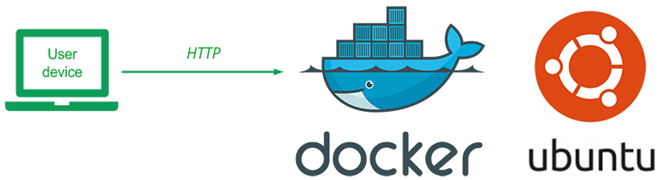
Docker container images are built from recipes contained in Dockerfiles. Images are created in layers starting from their base. For each command in the Dockerfile, a new layer is added to the image that is built. If many container images share the same layers, this allows a system to save storage overhead.
The Dockerfile.ubuntu file is shown below. The file does the following
- Specifies the base layer to be Ubuntu 22.04 including all of its default packages and libraries. Places all of it into the container image for the application to access.
- Specifies a maintainer.
- Updates and installs Python's package manager
pip. We usepipto install the Python package we need to run the application (e.g.flask) - Copies the contents of the current directory (
04_container_docker) into the container directory/app - Sets the working directory of the container image to that directory
/app - Installs the packages in
requirements.txtinto the container image - Sets the command arguments to start it with (
app.py with gunicorn)
Dockerfile.ubuntu
FROM ubuntu:22.04

LABEL maintainer="yourname@he-arc.ch"

RUN apt-get update -y
RUN apt-get install -y python3-pip

COPY . /app

WORKDIR /app

RUN pip3 install -r requirements.txt

CMD ["gunicorn", "--bind", "0.0.0.0:5000", "app:app"]
You will make a single edit to this file before using it. Specify your e-mail address as the maintainer for the container image that will be built.
We will now build our first container image. Because access to Docker requires elevated privileges, docker commands must typically be run via "sudo" (e.g. superuser do). This can be quite tedious. An alternative is to add yourself to the docker group, which is configured to automatically obtain elevated privileges when needed. To do so, run the following on your Linux VM. (Skip next step if on windows)
sudo usermod -a -G docker $(whoami)
The command adds (-a) your username (returned via $(whoami)) to the group docker (-G docker). To make this change hold, log out of your machine and log back in. Then, change back into the directory.
Build the container image from the Dockerfile using the current directory (.) and create a local tag for the resulting image named helloubuntu (-t)
docker build -f Dockerfile.ubuntu -t helloubuntu .
Show the image generated and its size using the command:
docker images
Then, create a running instance of the helloubuntu image and name it hellou (--name). Have the container run in detached mode (-d) without an interactive shell and map the host's port 8000 to the container port 5000 (-p 8000:5000).
docker run -p 8000:5000 --name hellou -di helloubuntu
Test the container by retrieving http://127.0.0.1:8000 (change ip if accessing a vm from host)
We will now get practice running some of the docker commands. To list all running (and stopped) containers, execute the command:
docker ps -a
Note under the NAMES column, the container that we named hellou.
To stop this container, perform the following:
docker stop hellou
See that it is no longer running via:
docker ps -a
Then, start the container via its name:
docker start hellou
This will start the container, but will not give you an interactive shell session on it.
To get an interactive shell on the container, perform the following:
docker exec -it hellou /bin/bash
Within the container, show the contents of the current directory via ls, the contents of the file specifying the Linux standard base being used (/etc/lsb-release), and the output of the process listing command (ps -ef). Exit out of the shell and container.
Stop the container again.
docker stop hellou
Then remove the container from the system.
docker rm hellou
Note that this command only removes the container instance. The container image it was derived from (helloubuntu) still remains on the system and can be used to launch subsequent container instances.
We will now publish the container image we created locally (helloubuntu) to the GIthub Packages registry at your github account. Companies often wish to store their container images privately in a location they control. They also wish to place the registry near the machines that are running instances. For this, cloud platforms implement private container registries on a per-project basis. For Google Cloud, this is done via Container Registry (gcr.io) and for AWS via Elastic Container Registry (ecr).
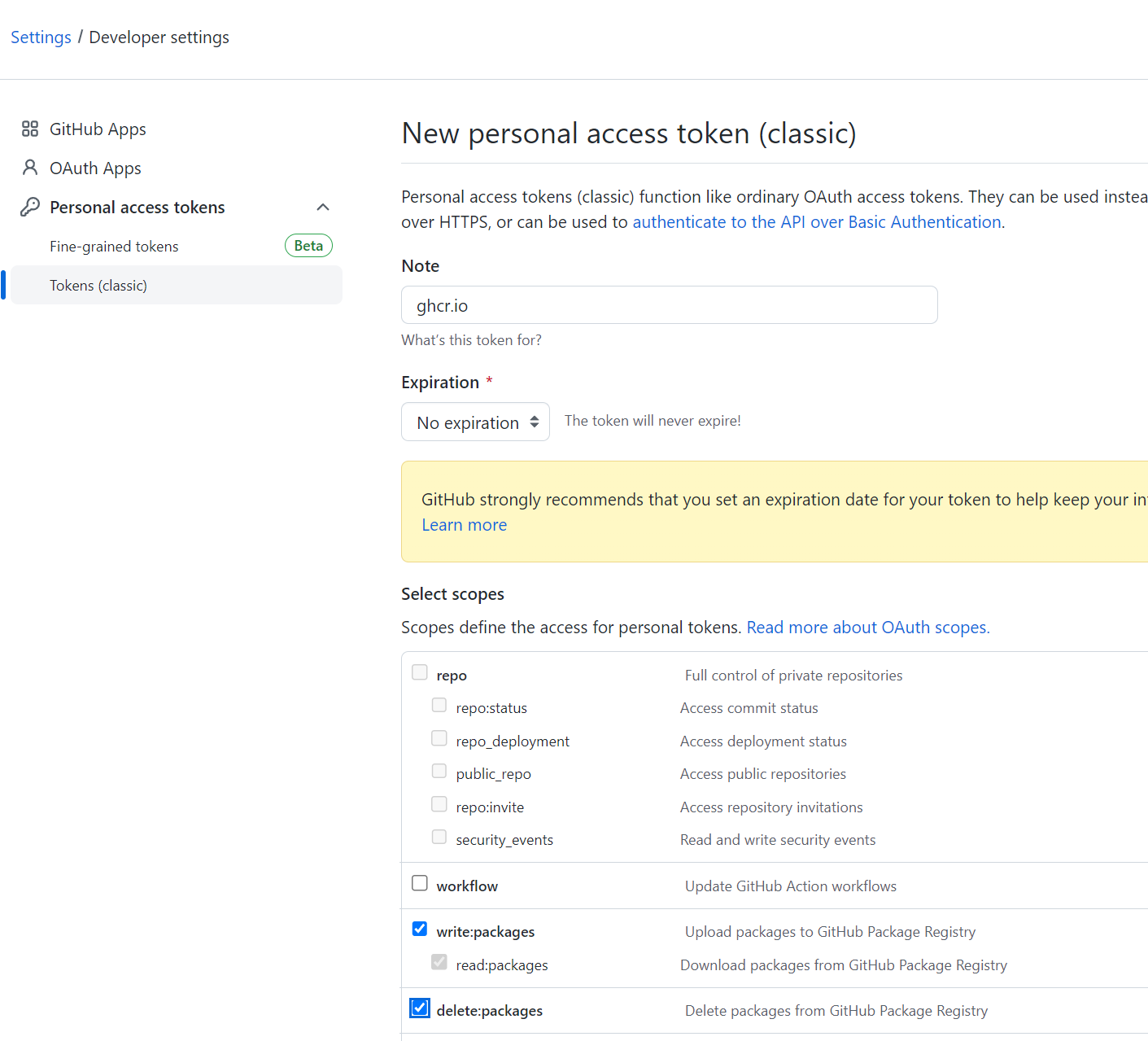
Create GitHub Access Token
To login into the GitHub Registry we need an access token.
We only need: read,write and delete access to packages.
For more information check GitHub Documentation.
We can now login with your github username and your new token as password.
docker login ghcr.io -u USERNAME
The local container image has a tag of helloubuntu. To access it via Docker Registry, it will require a global tag that is identified via the unique location of the image. Run the following command, replacing [username] with your own (e.g. bfritscher):
docker tag helloubuntu ghcr.io/[username]/helloubuntu:latest
Similar to git, docker can upload the image to the registry using a push command:
docker push ghcr.io/[username]/helloubuntu:latest
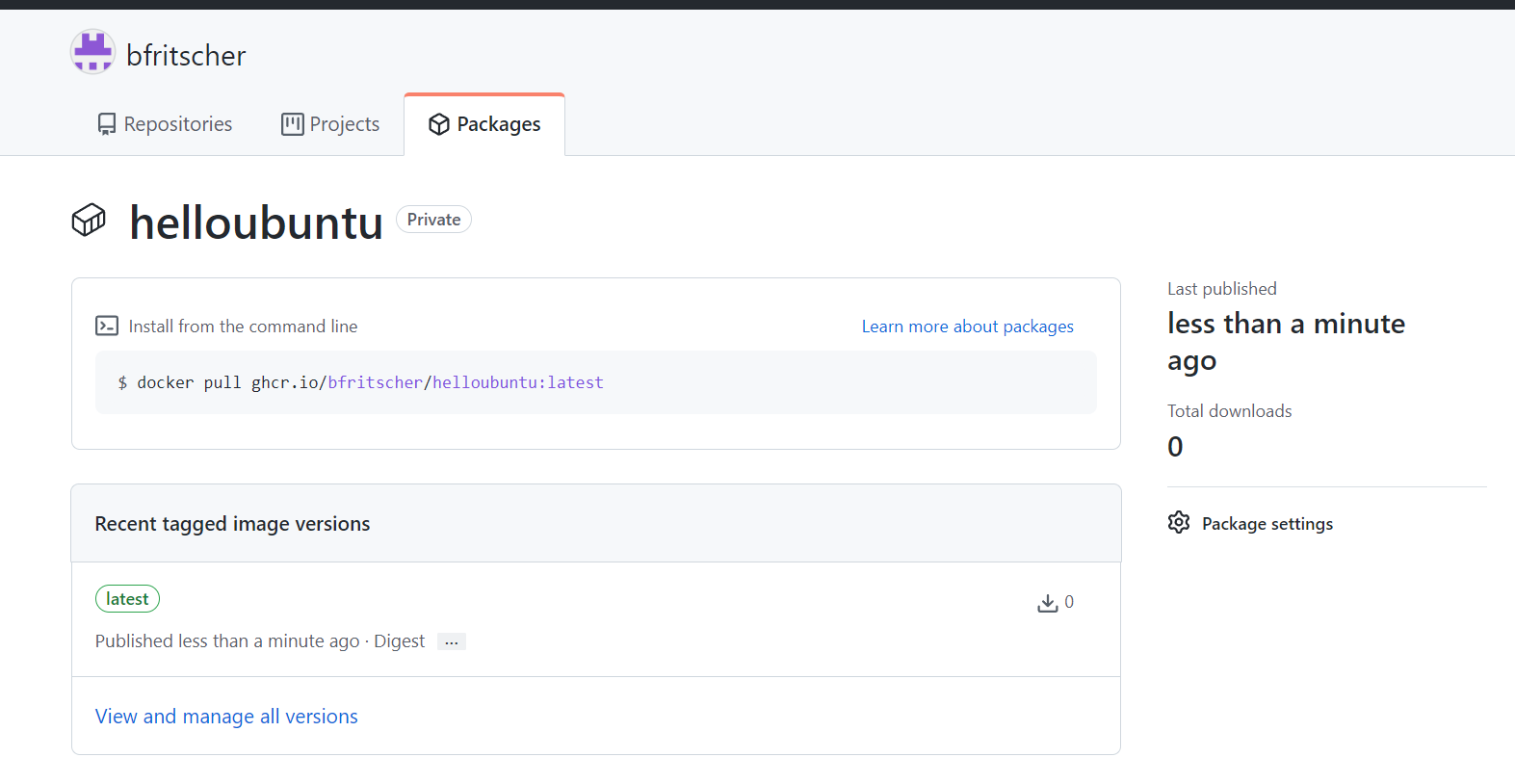
When you first publish a package, the default visibility is private. To change the visibility or set access permissions, see "Configuring a package's access control and visibility."
You can check your image on GitHub
https://github.com/users/[username]/packages/container/package/helloubuntu
We will now look to run the container image straight from Docker Hub. Examine the container images you've created and tagged so far:
docker images
Then delete both of them via their names with the remove image command:
docker rmi helloubuntu ghcr.io/[username]/helloubuntu
Run the image directly from Docker Registry.
docker run -di -p 8000:5000 --name hellou ghcr.io/[username]/helloubuntu
As before, the container is brought up and the local port of 8000 is mapped into the container port of 5000. Test the container by retrieving http://127.0.0.1:8000 using a browser
Stop and remove the container, then remove the container image.
docker stop hellou
docker rm hellou
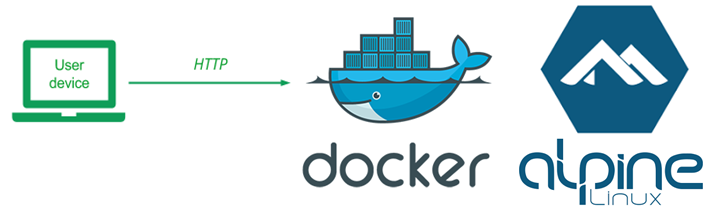
Using Ubuntu as a base image includes a large number of libraries and applications that are not needed for our simple Guestbook application. When building and running a large number of container images and containers, for startup speed and storage efficiency, one would like to reduce their sizes. One optimization we can make is to use a smaller base image such as Alpine, a set of Linux distributions that focus on removing many non-essential components in runtime Linux systems.
We will now build an Alpine-based container for our application. To begin with, change into the lab's directory.
cd guestbook-src/04_container_docker
View Dockerfile.alpine. Similar to Dockerfile.ubuntu, this file can be used to build a container image, but with an Alpine base image specifically made for running Python applications like ours. Note that because this base image already contains Python and pip, there is no need to install them as we did previously, making the Dockerfile simpler.
Dockerfile.alpine
FROM python:alpine

LABEL maintainer="yourname@he-arc.ch"

COPY . /app

WORKDIR /app

RUN pip3 install --no-cache -r requirements.txt

CMD ["gunicorn", "--bind", "0.0.0.0:5000", "app:app"]
As before, make a single edit to this file before using it. Specify your e-mail address as the maintainer for the container image that will be built.
We will now build the Alpine container image. Change back into the directory and build the container image from the Dockerfile with a local tag helloalpine.
docker build -f Dockerfile.alpine -t helloalpine .
Examine the container images you now have
docker images
- How much smaller is the image than the Ubuntu one?
Then, as before, create a running instance of the helloalpine image and name it helloa.
docker run -p 8000:5000 --name helloa -di helloalpine
Test the container by retrieving http://127.0.0.1:8000 using a browser.
See that the container is running:
docker ps -a
Attempt to get an interactive shell on the container by performing the following:
docker exec -it helloa /bin/bash
- What might have happened?
Replace /bin/bash with /bin/sh and repeat the command.
Finally, within the container, examine the file specifying the Alpine release being used (/etc/alpine-release) and perform a process listing command (ps -ef).
Exit out of the shell and container. Then, stop the container and remove it from the system
docker stop helloa
docker rm helloa
We will now publish the container image we created locally (helloalpine) to the GitHub Registry. The local container image has a tag of helloalpine. To access it via GitHub, it will require a global tag that is identified via your account name. Run the following command, replacing [username] with your own (e.g. wuchangfeng):
docker tag helloalpine ghcr.io/[username]/helloalpine
Then push the image to Docker Hub using the command:
docker push ghcr.io/[username]/helloalpine
Examine the container images you've created and tagged so far:
docker images
Then delete them via their names:
docker rmi helloalpine ghcr.io/[username]/helloalpine
Run the image directly from Docker Hub. You should see the individual layers of the container being downloaded separately.
docker run -di -p 8000:5000 --name helloa ghcr.io/[username]/helloalpine
As before, the container is brought up and the local port of 8000 is mapped into the container port of 5000. Test the container by retrieving http://127.0.0.1:8000 using a browser.
Task Progress
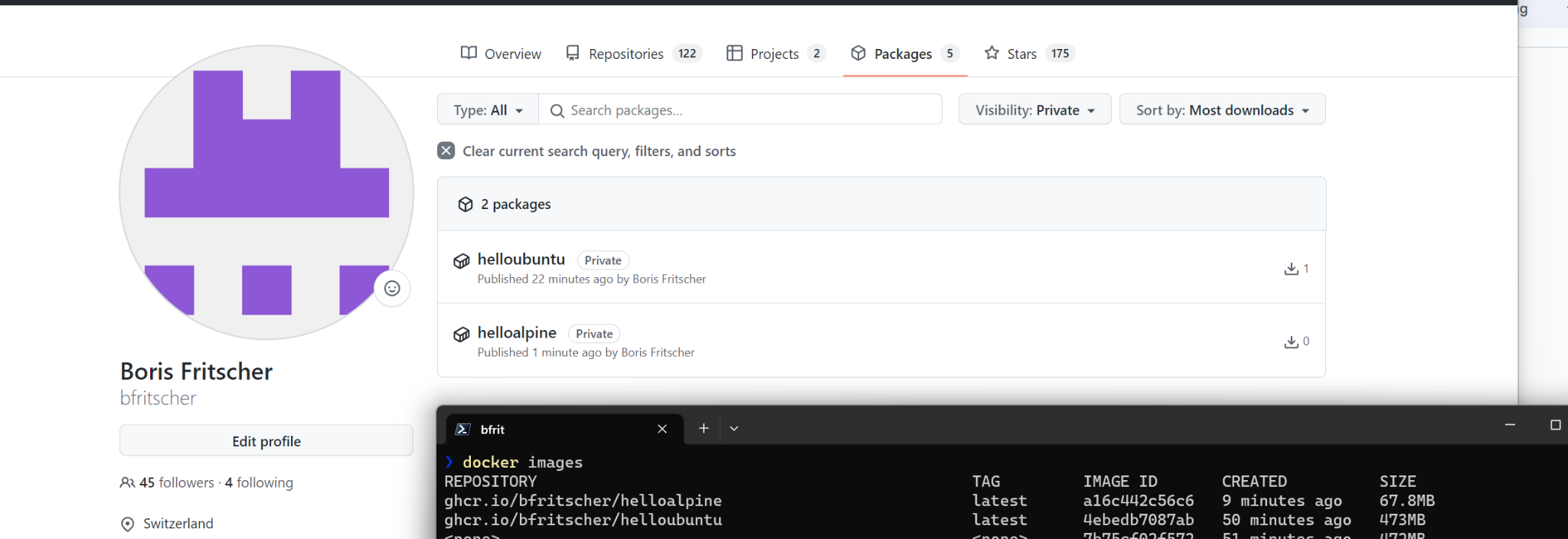
Take a screenshot of your github packages https://github.com/[username]?tab=packages and an output of docker images and upload below.
Google runs billions of containers each week. In order to streamline their execution and management, a VM optimized for containers called Container-Optimized OS is used. We can deploy our container on top of it directly.
One of the optimizations made in the Container OS VM is that container ports are directly mapped onto the host ports when an instance is started with a specified container image. Our container images run the Guestbook on Flask's default port (5000). As a result, in order to access the application from external sites, we need to add a firewall rule to allow incoming traffic to the port.
Option #1: Cloud Shell
We can use Cloud Shell to directly create the firewall rule called tcp-allow-5000 to allow ingress or incoming traffic on port 5000 using the command below. Specify a target tag of http-5000 that can be used to assign the rule to any Compute Engine instance.
gcloud compute firewall-rules create tcp-allow-5000 \
  --allow=tcp:5000 --target-tags=http-5000 \
  --direction=INGRESS
Option #2: Web console
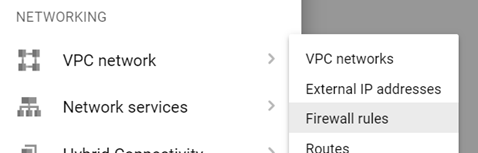
One can also instantiate the rule via the web console on Google Cloud. To do so, locate "VPC network" in the console, then click on "Firewall rules"
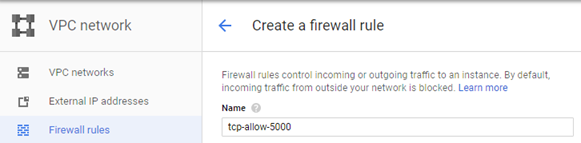
Create a new rule called tcp-allow-5000.
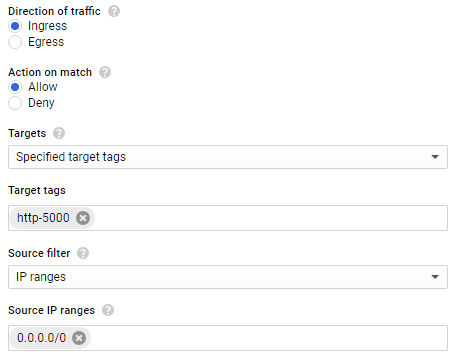
Set its target tag to http-5000. Then, specify the rule to apply on ingress traffic, for all source IP addresses connecting to port 5000.

To use our image from GitHub we must make it public.
Go to https://github.com/users/[username]/packages/container/helloalpine/settings
And at the bottom of the page change visibility to public.
Then, within Compute Engine, create a VM to deploy your container on.
Option #1: Cloud Shell
Fill in the container image using your previously created container on DockerHub and create the VM with the container running and the appropriate tags attached.
gcloud compute instances create-with-container cos-gb \
  --container-image=ghcr.io/[username]/helloalpine
  --zone=us-west1-b \
  --machine-type=e2-micro \
  --tags=http-server,http-5000
Option #2: Web console
In the UI, create a VM and specify the container image name to be your Docker Hub image name for the Alpine version of your web application.
The boot disk will be automatically set to Google's Container OS when a container image is specified. Then, Allow HTTP Traffic and click on the "Advanced Options" link to expand it. Select the "Networking" and specify the http-5000 target tag to allow access to port 5000.
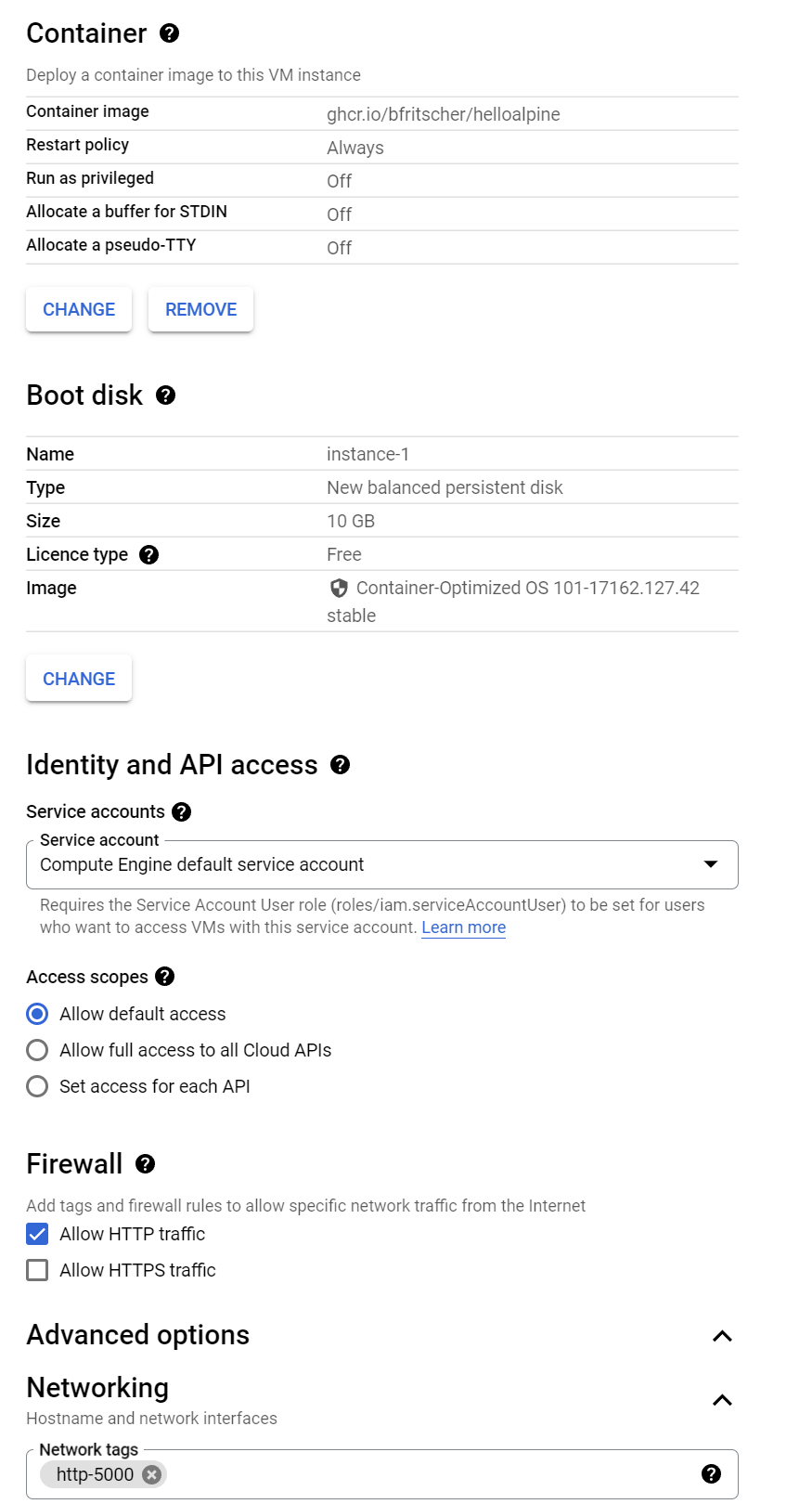
Create the VM and wait for it to come up.
ssh into the instance via the web console or in Cloud Shell via
gcloud compute ssh cos-gbPerform a local request to the web app (e.g. wget http://localhost:5000) to ensure the container is running.
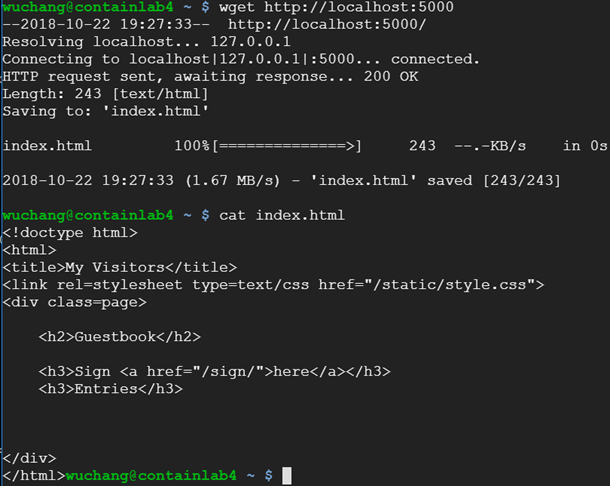
Finally, visit the site via the external IP address on port 5000 to show the site is running. Add a "Hello ContainerOS!" guestbook entry.
Go back to the web console of Google Cloud and then go to Compute Engine. Visit the VM instances page and delete the VMs you have created. You can also delete them within Cloud Shell via:
gcloud compute instances delete cos-gb