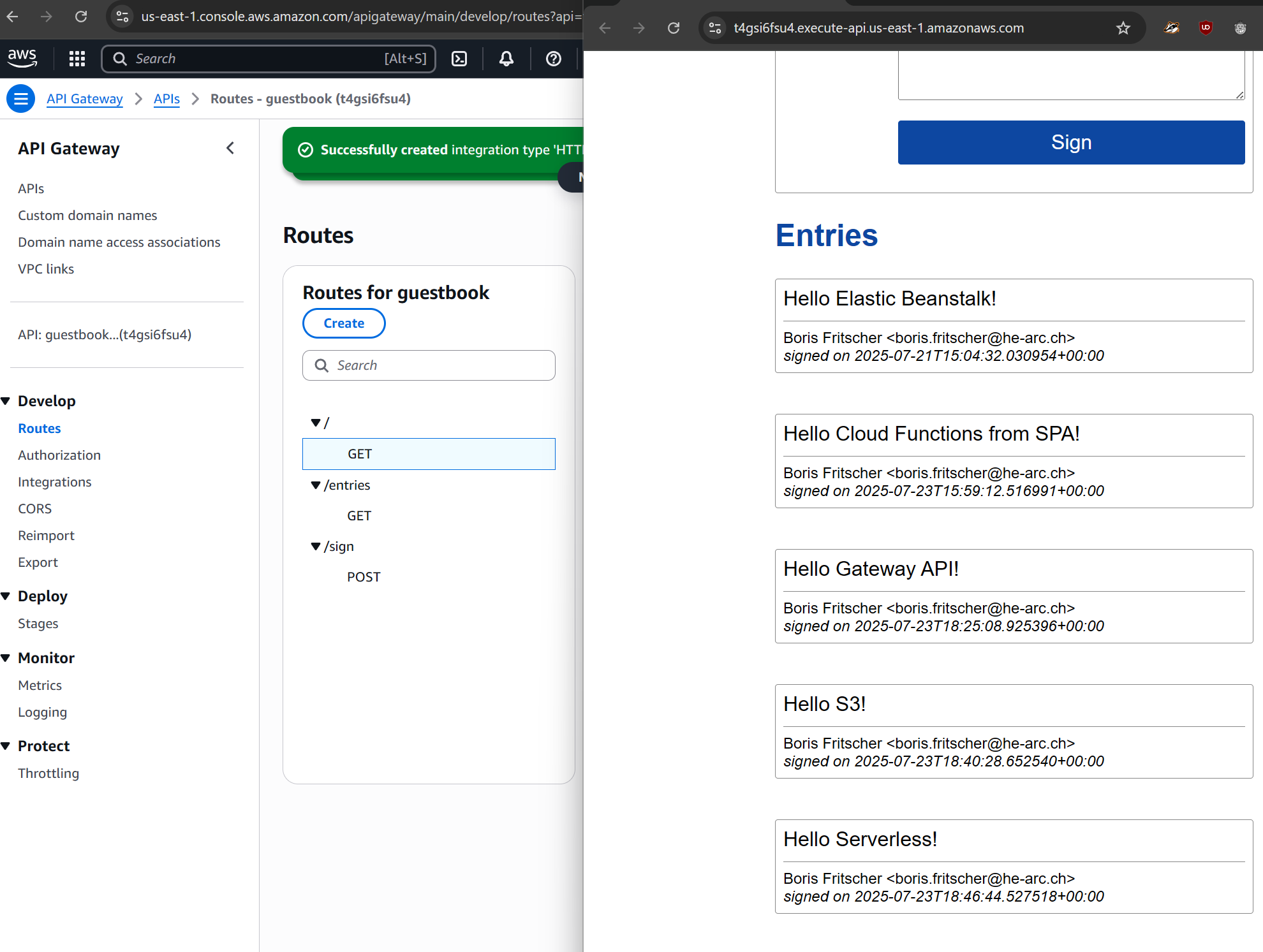
Lambda Functions is a service on AWS that supports serverless deployments of functions. Much like serverless platforms with AWS Elastic Beanstalk, the infrastructure is hidden and is autoscaled to meet demand. Unlike AWS Elastic Beanstalk which typically run full applications, Lambda Functions are typically used to perform a single task and are implemented using a limited set of container environments provided by AWS.
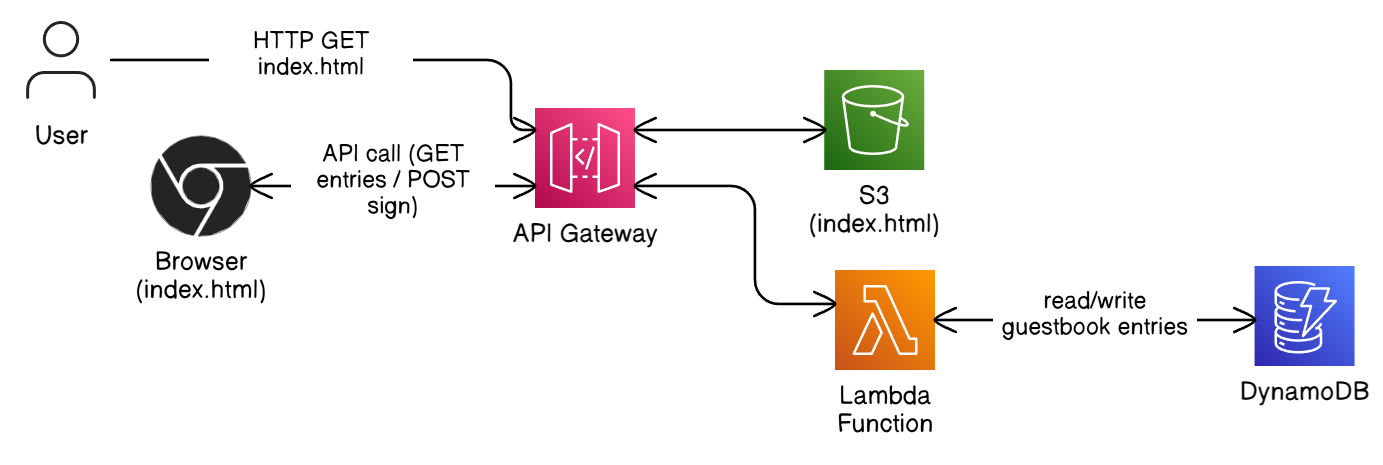
Previously, rendering of the Guestbook was done in Flask with Jinja templates returning HTML and CSS back to the browser upon each update. Modern, client-side rendering approaches, however, perform the rendering task on the front-end browser, leaving only the Model function to be implemented by the backend server. When split into this architecture, after the browser downloads the initial web content, the backend is then only accessed via a REST API to update Model state. Serverless functions are often used to implement REST APIs.
As our Guestbook application is quite minimal, having only two functions, it can easily be adapted to this style of architecture.
To demonstrate this, we will now take our guestbook application and break it into a frontend and a backend and then create an API for directly accessing the Guestbook model backend.
Our backend REST API will be done serverlessly on AWS using Lambda Functions while the frontend will be a simple webpage that calls out to the REST API to POST and GET guestbook entries. The single webpage (frontend code) is a static html file with javascript code. It will be served by Amazon S3 (Simple Storage Service). We will also use AWS Gateway API to map all functions under the same domain.
To begin with, visit the code in your folder
cd guestbook-src/06_aws_restapi_lambda
The gbmodel code is the same.
The main code change in this version is the removal of the server-side rendering code that generates HTML for the site. This has been replaced with two files (sign.py, entries.py).
Both files contain the lambda_handler function which gets executed by AWS Lambda. We do not receive a request object, but an event and context. Lambda function can be triggered by many other events than http requests.
The first file entries.py supports code for handling GET requests as shown below. It calls our Model's select() function to retrieve all of the entries in the Guestbook model. In previous instantiations, the web application took the results returned from the model (as a list of lists) and then rendered them in HTML using Jinja2. For the REST API, rather than return HTML, we instead need to return an object in Javascript Object Notation (JSON). The code takes the list of lists and creates a list of dictionaries (entries) that is then converted into JSON (json.dumps) and sent back to the client. AWS Lambda expects an object with statusCode and body.
entries.py
import gbmodel
import json

def lambda_handler(event, context):
    model = gbmodel.get_model()
    entries = [dict(name=row[0], email=row[1], signed_on=row[2].isoformat(), message=row[3] ) for row in model.select()]
    return {
        "statusCode": 200,
        "body": json.dumps(entries)
    }
The other function is implemented within sign.py. As shown below, it checks to ensure that a JSON object specifying a Guestbook entry is included in the data. It then gets the dictionary representation of the JSON object from the body, validating that all parts of the entry are included (via the all()), before calling the Model's insert()method to insert the entry into the Guestbook
sign.py
import gbmodel
import json

def lambda_handler(event, context):
    model = gbmodel.get_model()
    request_json = json.loads(event.get("body", "{}"))

    if all(key in request_json for key in ("name", "email", "message")):
        model.insert(
            request_json["name"], request_json["email"], request_json["message"]
        )
        print(f"Received: {request_json['name']}, {request_json['email']}, {request_json['message']} and added to DB")
        return {
            "statusCode": 204,
            "body": "",
        }
    else:
        return {
            "statusCode": 400,
            "body": json.dumps(
                {"error": "JSON missing name, email, or message property"}
            ),
        }
Both our functions share the same gbmodel code. Instead of uploading it for each function we will create a layer which allows sharing code between multiple Lambda functions.
Prepare Layer Files
AWS expects a zip file container, a python folder which then contains the files and folders to share. Change into the layer folder and run the command to create a zip file
$ cd layer
$ Compress-Archive -Path .\python -DestinationPath .\layer.zip
Create Layer on AWS
In the AWS Web console go to Lambda and then Layers under Additional resources
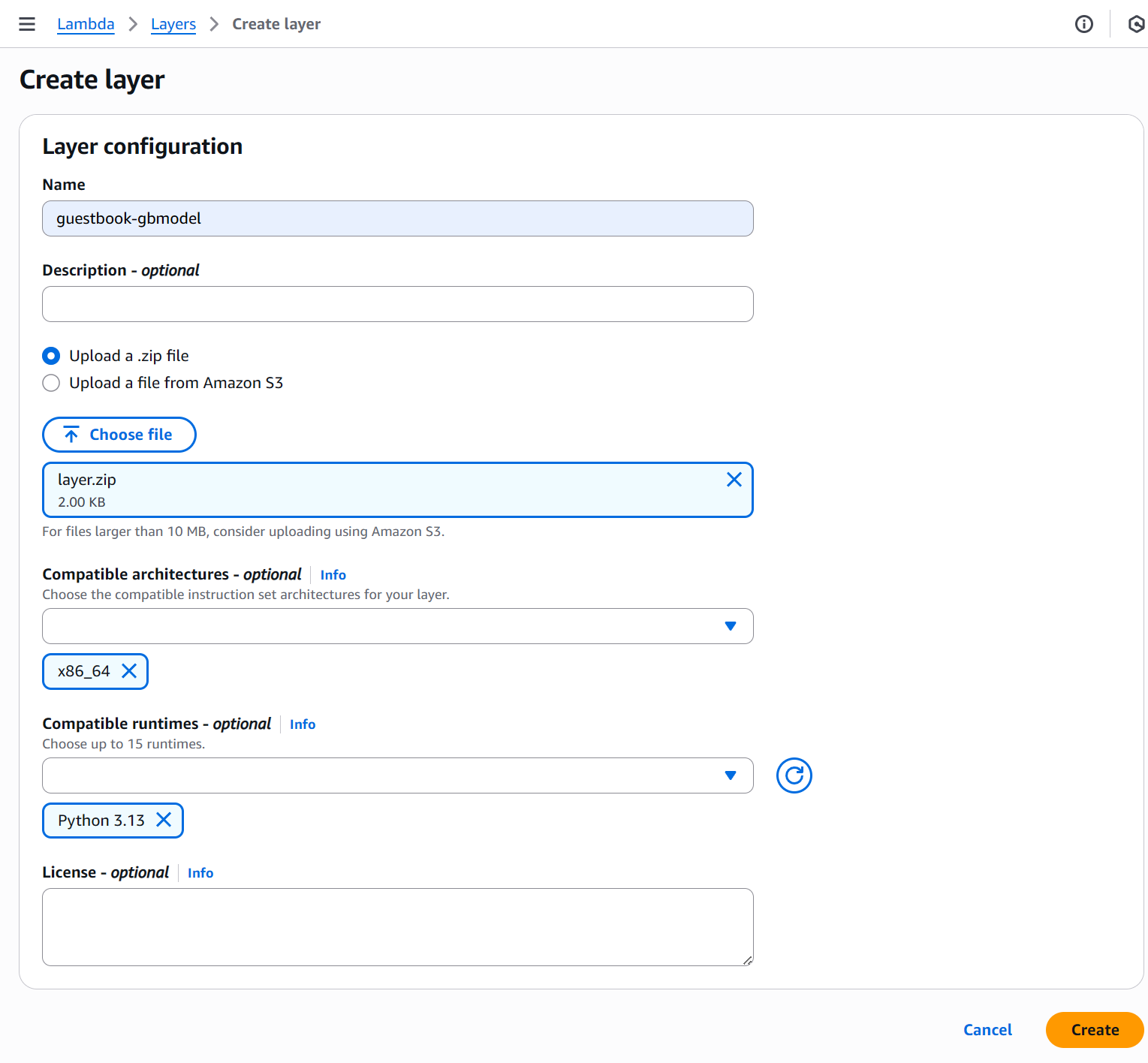
Create layer
- Name:
guestbook-gbmodel - Upload: select the
layer.zip - Architecture:
x86_x64 - Compatible runtimes:
Python 3.13
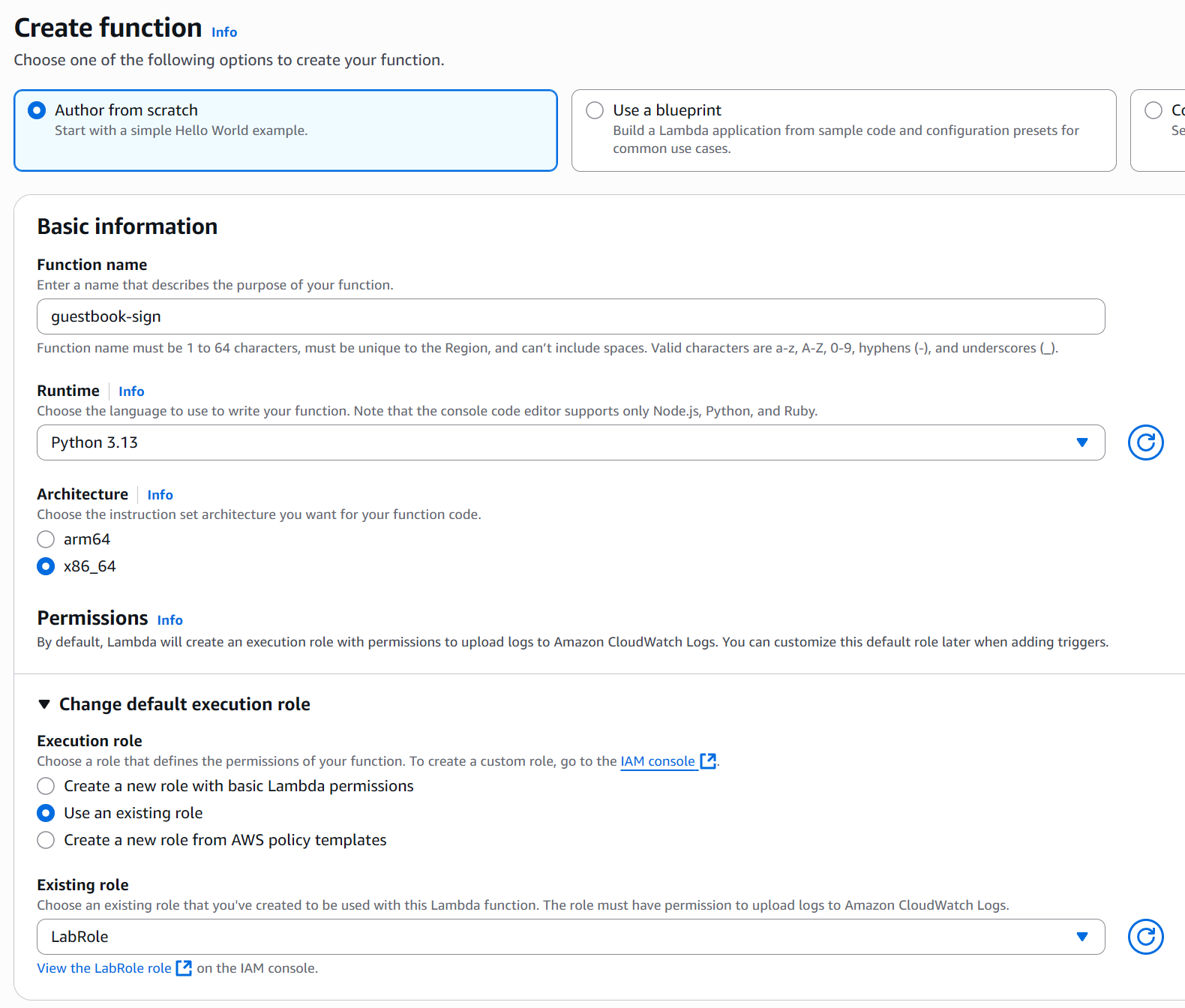
We will now setup our first AWS Lambda function. Return to the Lambda dashboard and create a function:
- Function name:
guestbook-entries - Runtime:
Python 3.13(the same as the layer) - Under Change default execution role: choose existing role and select
LabRole
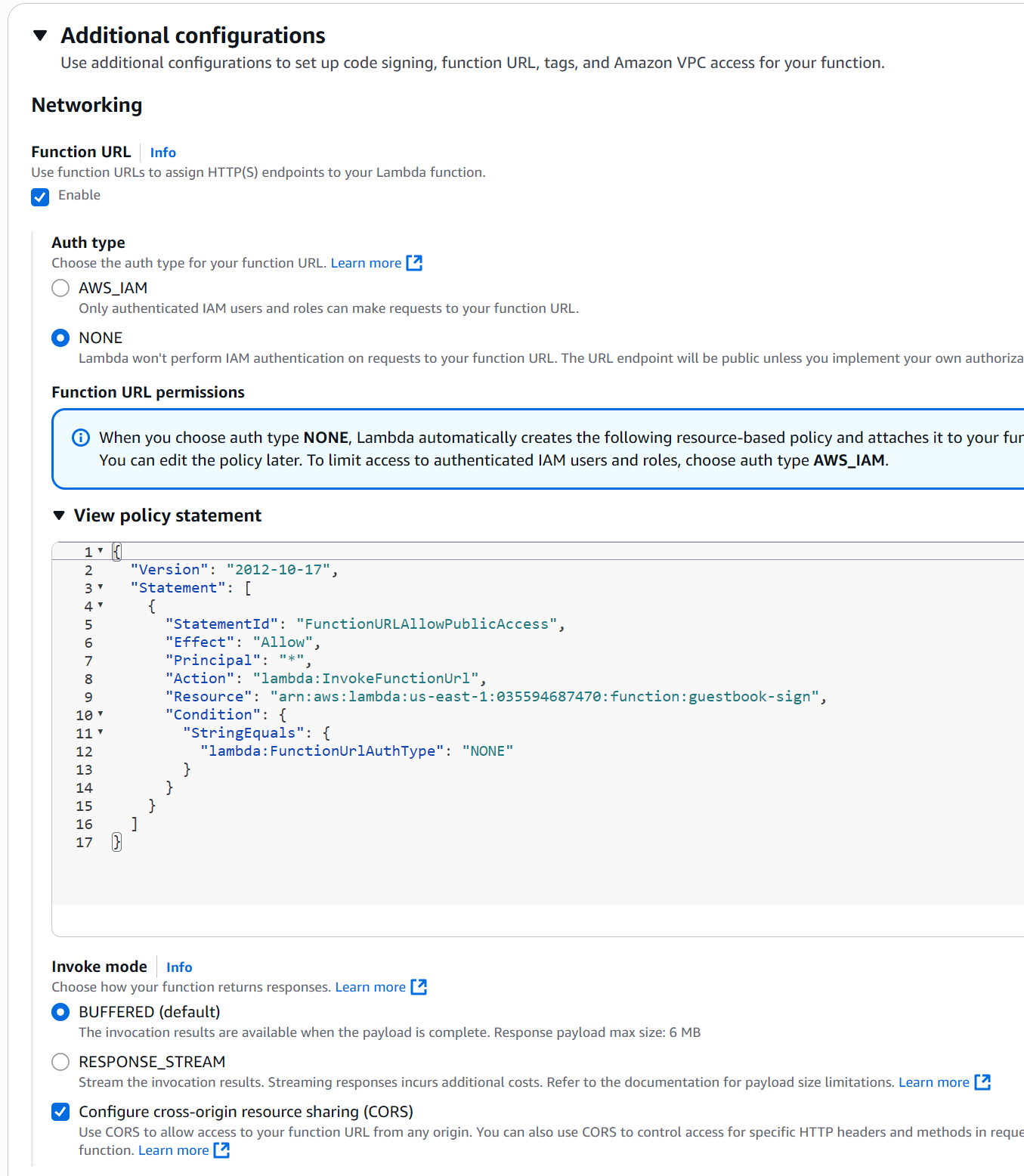
Under Additional configurations
- enable Function URL with Auth Type: None and enable CORS
CORS aside
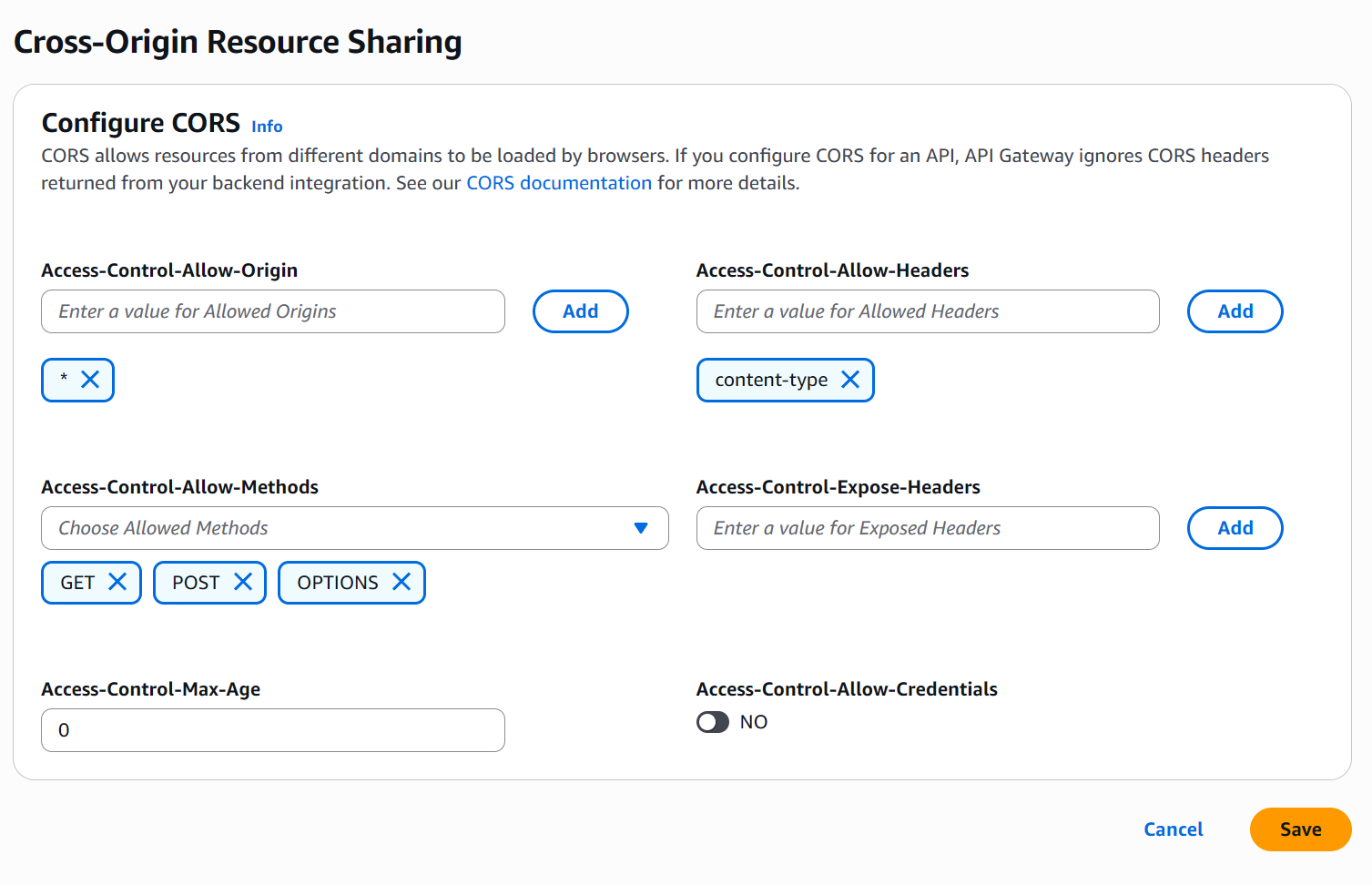
AWS Gateway API and Lamba both support CORS (cross-origin resource sharing) so we do not need to handle it in our function. CORS allows us (as a REST API provider) to restrict which web sites can access our APIs from Javascript. If your Guestbook front-end is hosted by foo.com, the web browser will query our REST API endpoint with a "pre-flight" OPTIONS request to check to see if Javascript code from foo.com is able to access the endpoint. The code for handling the CORS request is below. As the code shows, it simply sets the HTTP response headers to allow all origins '*' to perform the specified method request (in this case, GET). We use the wildcard since we don't know (in this codelab) where the frontend will be served from. If the front-end were served from foo.com, then we could specify 'https://foo.com' for the 'Access-Control-Allow-Origin' header value. More on this later
Layer Configuration
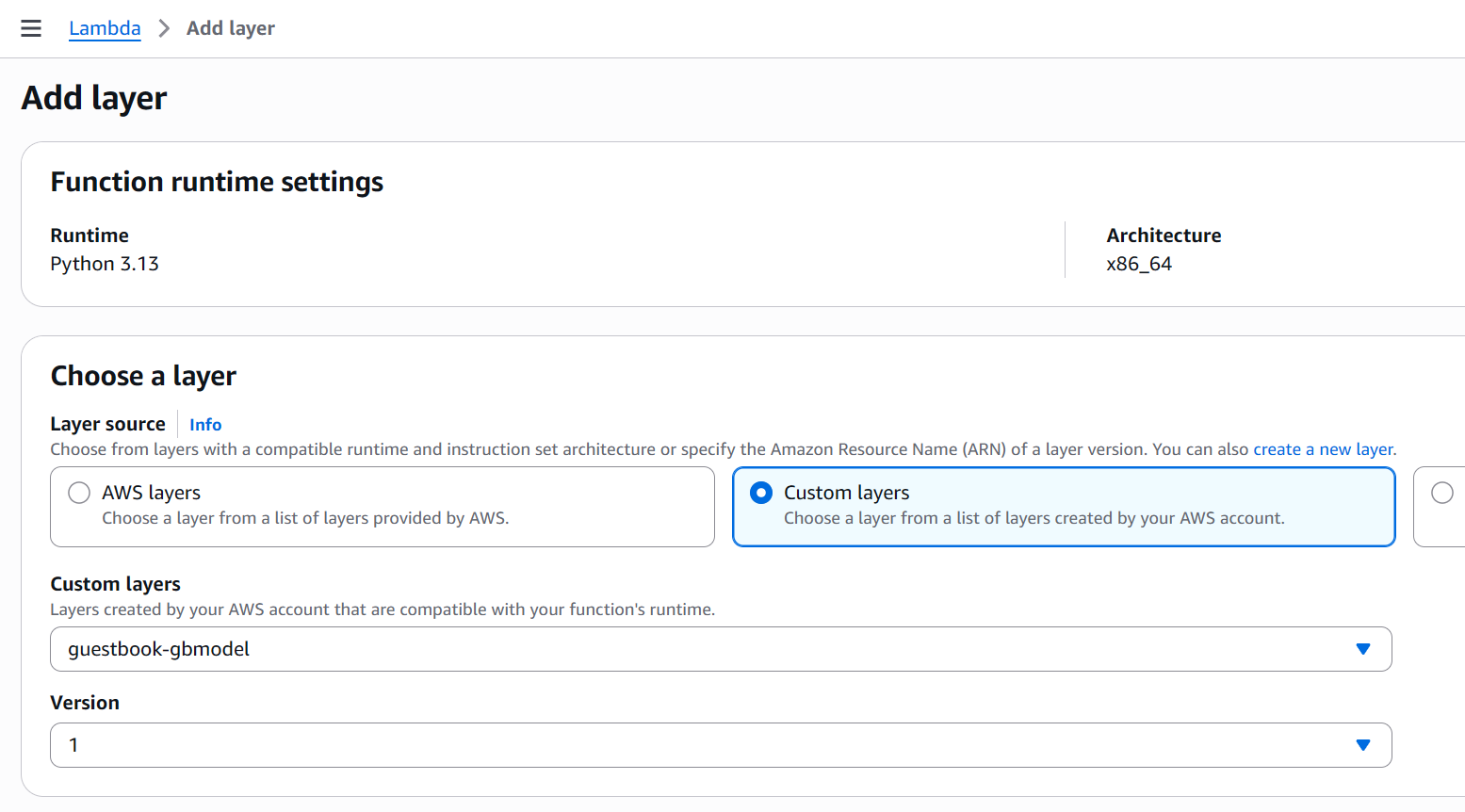
At the bottom of the page click add layer.
Then select our created layer and add it.
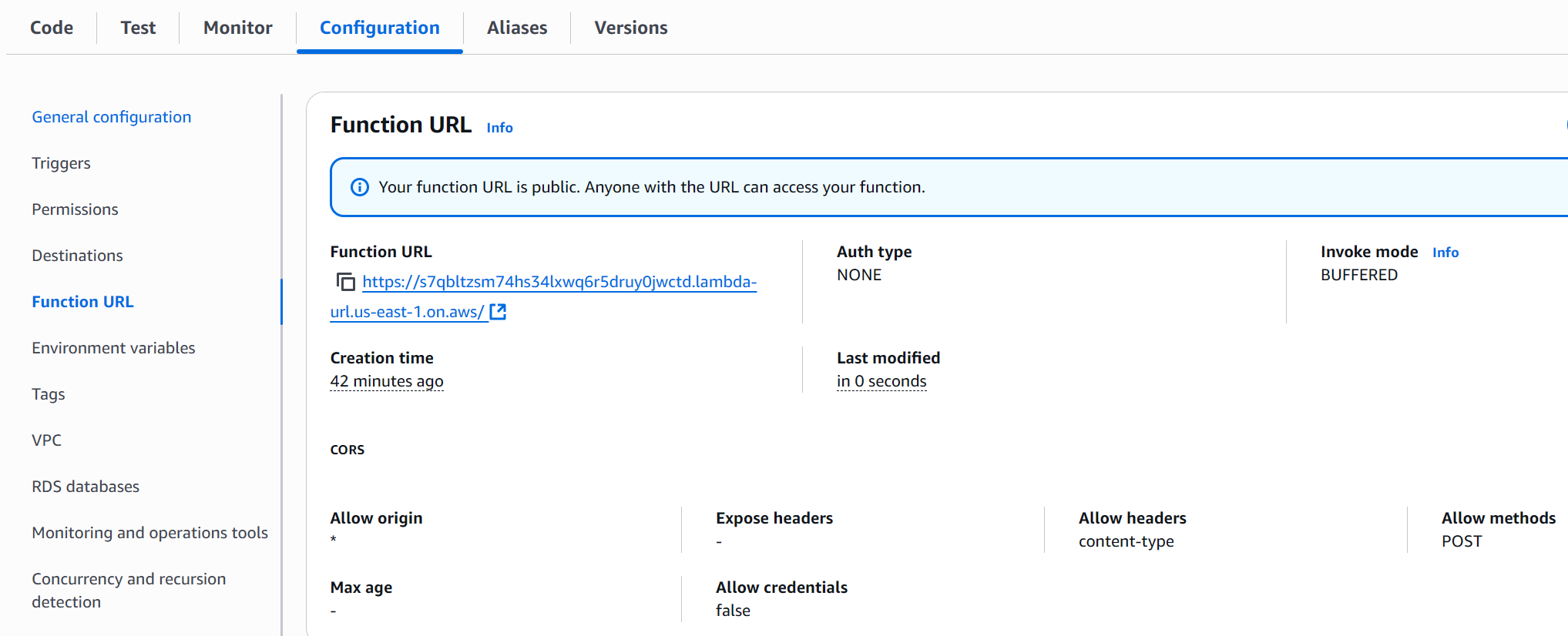
CORS Configuration
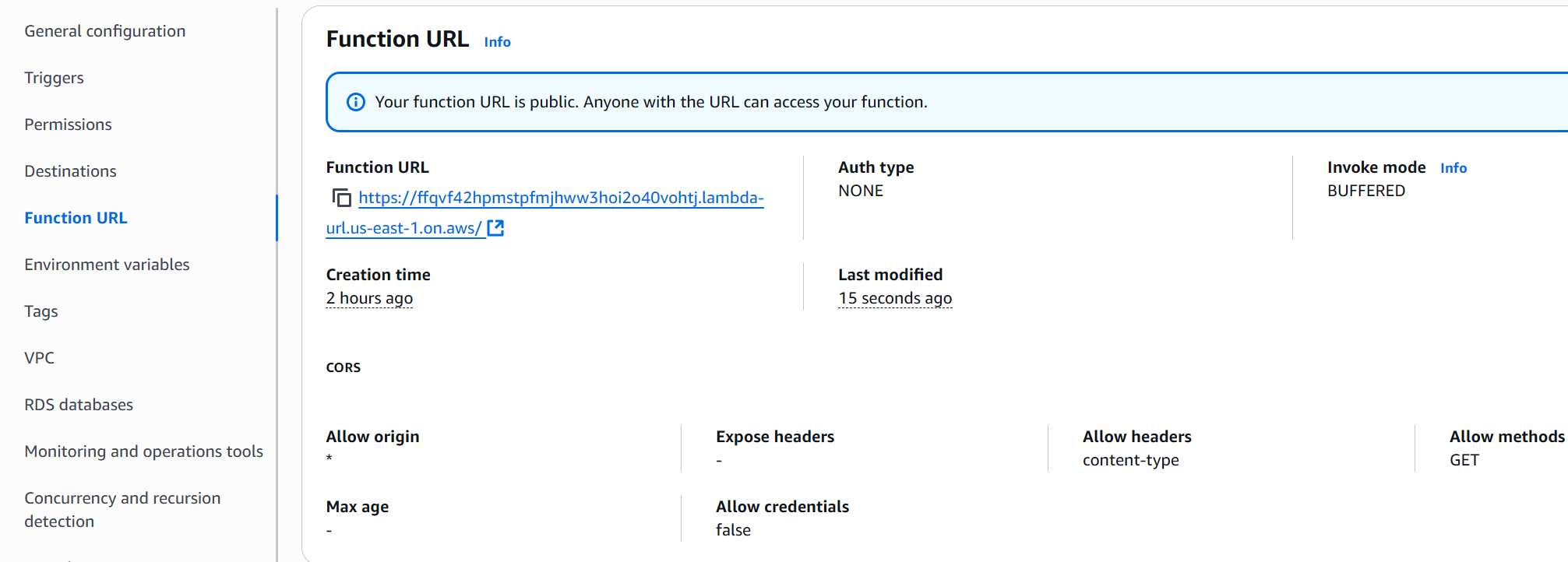
After the Function overview, click on the Configuration tab and then on the Function URL (left menu)
We need to add:
- Allow origin:
* - Allow headers:
content-type - Allow methods:
GET
Code Configuration
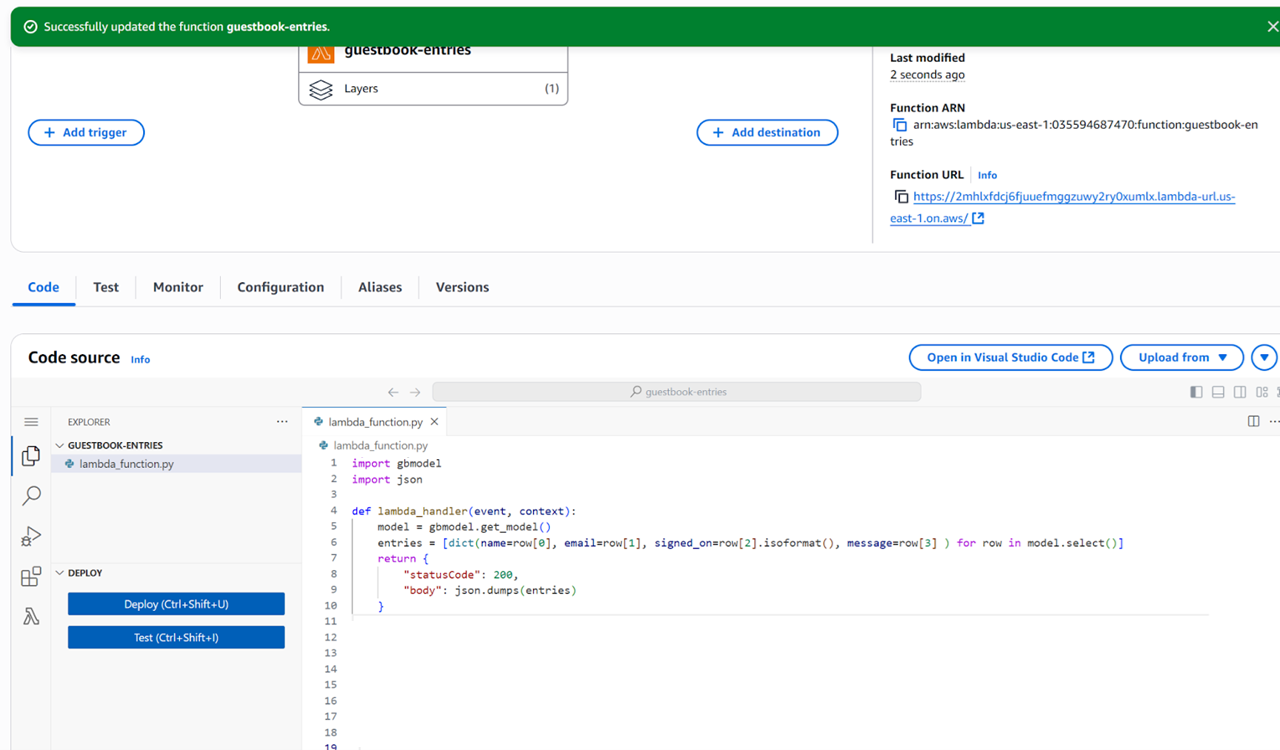
Now we can copy the content of the entries.py file to the source code area and Deploy it
Test entries function
Sign Endpoint Configuration
CORS configuration will be different: we will use POST.
As this function requires a POST request we cannot test it directly in the browser.
We can use the Test function from AWS in the next chapter.
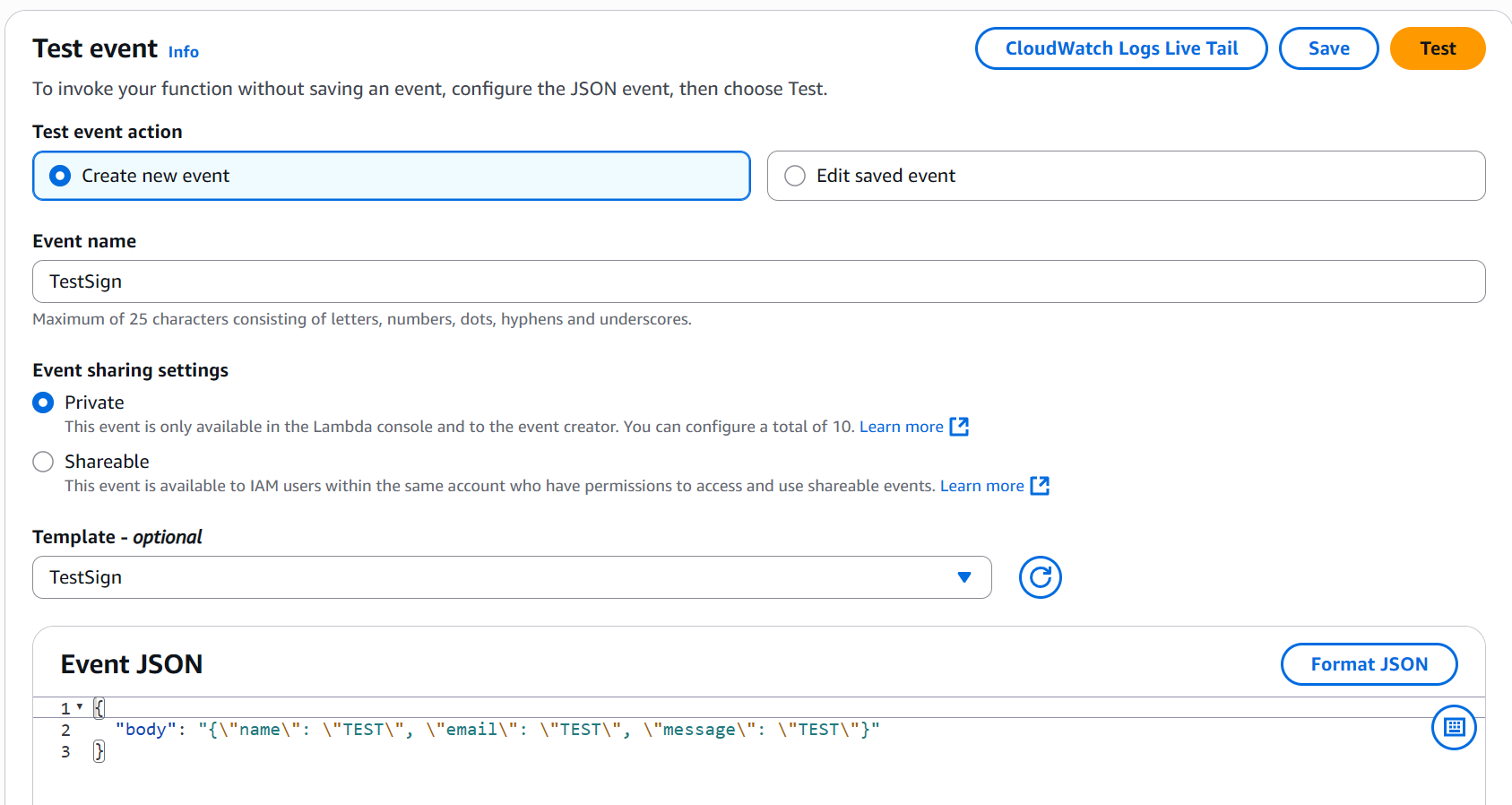
Click on the Test tab. Here you can configure a payload event to send to the function.
The event payload must at a minimum be a JSON object which contains the body content as a String. We expect a JSON body content in our function therefore we need to escape the " in the body string.
{
  "body": "{\"name\": \"TEST\", \"email\": \"TEST\", \"message\": \"TEST\"}"
}
If the test is successful we will get a notification with the result.
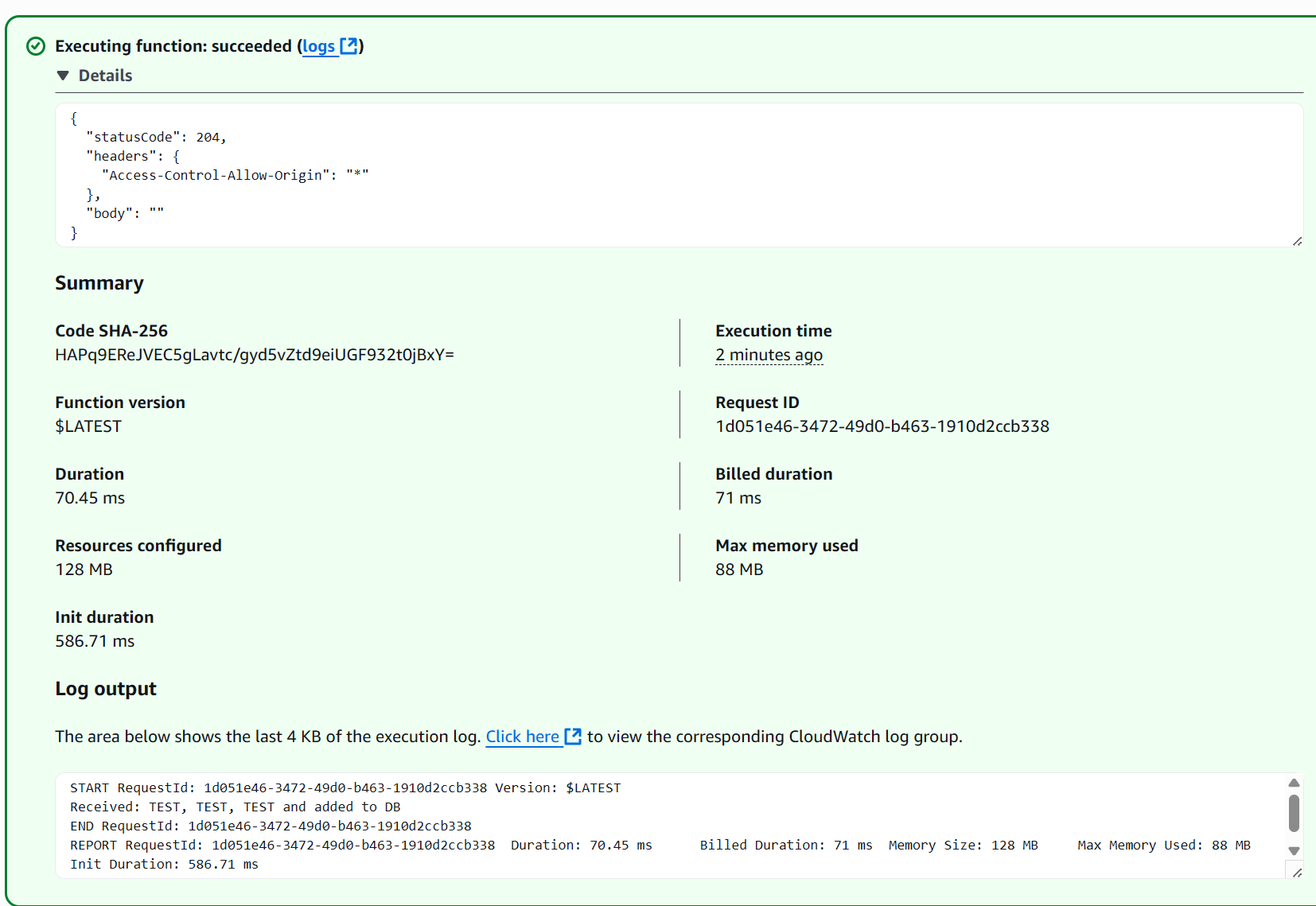
We can also see the Received print statement from our code in the Log output.
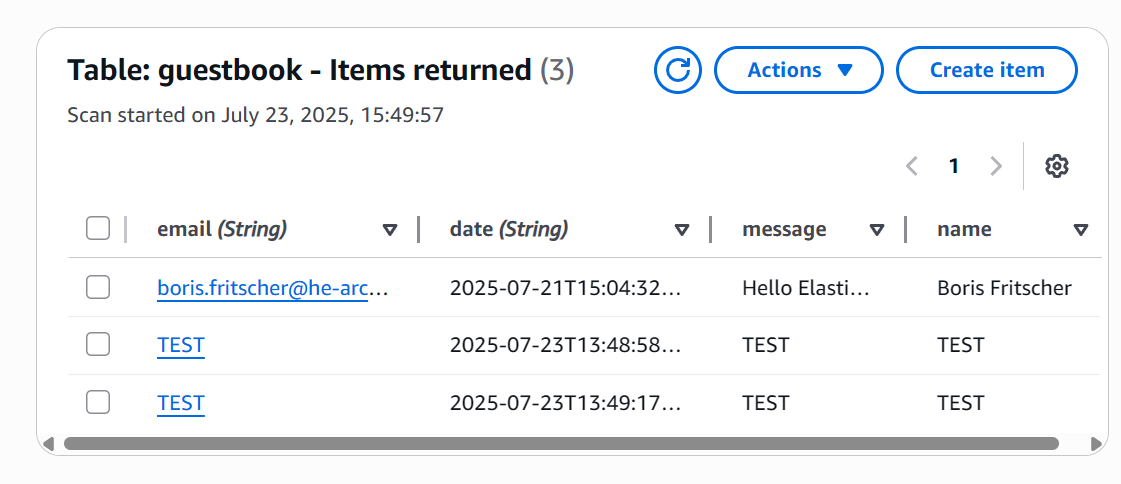
Additionally you can check in your DynamoDB guestbook table (under DynamoDB not Lambda)
REST APIs can be programmatically accessed via any popular language. As we have been using Python for the class, we can do so using its interpreter. On your machine enter the interpreter:
$ python
Use python3 in linux
Test GET on entries
Within the interpreter, import the requests package and access the REST API's entries endpoint, saving the response.
import requests
resp = requests.get('https://<function-id>.lambda-url.us-east-1.on.aws')
Using the interpreter and the resp object, use Python's print() function to show the following for the response:
- Response HTTP status_code (
resp.status_code) - Response headers (
resp.headers) - Data type of the response headers (using the
type()) function of Python - Response text (
resp.text) - Data type of the response text
- Response represented as a JSON object (
resp.json()) - Data type of the response JSON
Then, assign the response JSON to a variable and use the Python interpreter to write a loop that individually prints the name, email, signed_on, and message of the first Guestbook entry returned.
Test POST on sign
We can also use Python to submit a new Guestbook entry via the REST API. Within the same interpreter session, import the JSON package and create a dictionary containing a Guestbook entry with your name, email, and message of "Hello Cloud Functions from Python Requests!". Note that, in Python, you can create a dictionary using syntax similar to JSON. For example, the snippet my_dict = {'foo':'bar'} creates a dictionary with a single entry with key 'foo' and value 'bar'.
import json
my_dict = {
    'name' : 'Demo',
    'email' : '@he-arc.ch',
    'message' : 'Hello from python request',
}
Then, submit a POST request to the API's entry endpoint, passing the dictionary containing the Guestbook entry into the json keyword parameter to the post() method. The request package will convert the dictionary into the JSON format as part of the request.
resp = requests.post('https://<function-id>.lambda-url.us-east-1.on.aws', json=my_dict)If it worked print(resp) will be 204.
With a single page application (SPA), you download the entire site as a static bundle and then, just like an application, you interact with it seamlessly. As the application needs to send and retrieve data to the backend server, it does so asynchronously using Javascript and HTTP requests to and from the APIs it is programmed to access. There are many examples of single-page applications such as Google Mail and Google Docs.
This version of the Guestbook is implemented in a similar manner. A standard interface to interface with the backend model, our controller and presenter code is able to work with any new models without modification. In this case, one can consider the REST API specification as our new model interface as it standardizes our HTTP queries so that our front-end code does not have to change if we shift backends between AWS and GCP.
Visit the source directory containing the application.
cd guestbook-src/06_aws_restapi_lambda/
View index.html which contains the application. As the file shows, it is similar to prior versions with two exceptions. The first exception is that it now includes a Javascript script
This script will execute code when we submit a new entry and update our page with the response. By operating on the DOM directly, it will allow us to view the results of our submission immediately without reloading the page.
The base page also implements the form used to sign the Guestbook. As the code below shows, each input field is labeled (name, email, message) so that it can be accessed by our Javascript code . In addition, when the "Sign" button is clicked, the sign() function that is defined in the script will be called (we will bind the listener to the button in the javascript code).
index.html
 <h2>Guestbook</h2>
      <div class="box">
        <label
          ><span>Name:</span><input type="text" name="name" required
        /></label>
        <label><span>Email:</span><input type="email" name="email" /></label>
        <label
          ><span>Message:</span><textarea name="message" required></textarea>
        </label>
        <label><span></span><input type="submit" value="Sign" /></label>
      </div>
Finally, at the bottom of the page is the definition of a The main logic which implements our application is located in the script tag we could have linked to a file There are three functions in this script: The To update the UI Ensure that you have modified the Bring up a web browser and go to File=>Open File to open a local HTML file. Navigate to the directory containing the index.html file and view it. Enter a message using your name, e-mail address, and the message "Hello Cloud Functions from SPA!". We will now use API Gateway to unify the two Lambda functions under the same domain Click create To test locally we need to again setup additional CORS options. Under Develop lets configure CORS for the API gateway. Lets use the API Gateway in our frontend code. Uncomment the and replace with the API Gateway Endpoint URL. Remove the previous , and use the once from the comments. Inside the same folder as the index.html file from the command line start a python webserver with: Open your browser on http://localhost:8000 and test with a message Hello Gateway API! Storage buckets are often used to serve static web sites. When configured as multi-region buckets, the content within them can be automatically forward deployed to locations near to where clients are requesting the content from. Once created click on the bucket and at the bottom of the Properties tab, edit Static website hosting. We also need to add a Bucket policy to allow anyone read access Unfortunately S3 does not support SSL, but we can create a route in our gateway to proxy this url. See if the guestbook works on SSL with a message Hello Serverless! Take a screenshot showing: Upload the combined screenshot to complete the lab. To cleanup you will need to delete: But as it is serverless, if nobody uses it, it will not cost you much or might be covered by the free tier.entries". This element will be used by our Javascript code to automatically update what is rendered for the based on the entries returned by the backend.
index.html
<h2>Entries</h2>
<div id="entries"></div>guestbook.js script
guestbook.js, but for simplicity we put CSS and JS inside the HTML. We define a baseApiUrl for the REST API. This URL will support two endpoints: the entries endpoint supporting a GET request to obtain all of the entries in the Guestbook in JSON and the sign endpoint supporting a POST request to add an entry to the Guestbook using JSON.getEntries, sign, and viewEntries. The code for getEntries is shown below. It simply uses the browser's fetch() interface to access the entries endpoint asynchronously. It then parses the returned string into the gbentries array, before calling viewEntries. viewEntries will then update the page's DOM elements directly with the data obtained.guestbook.js
const getEntries = async () => {
const response = await fetch(entriesURL, {
headers: {
Accept: "application/json",
"Content-Type": "application/json"
},
method: "GET"
});
const gbentries = await response.json();
renderEntries(gbentries);
};sign function collects form values via their names and formats a JSON object with them. It then issues a POST request using the browser's fetch() interface to the entry endpoint asynchronously. After receiving a response we call getEntries() to update the list .guestbook.js
const sign = async () => {
const name = document.querySelector("input[name=name]");
const email = document.querySelector("input[name=email]");
const message = document.querySelector("textarea[name=message]");
const button = document.querySelector("input[type=submit]");
button.style.display = "none";
await fetch(signURL, {
headers: {
Accept: "application/json",
"Content-Type": "application/json"
},
method: "POST",
body: JSON.stringify({ name: name.value, email: email.value, message: message.value })
});
button.style.display = "block";
name.value = "";
email.value = "";
message.value = "";
getEntries();
};getEntries, call renderEntries with the gbentries returned by the API calls. As the code below shows, the renderEntries first clears out the DOM of previous guestbook entries. It then performs a map of a function across all of the gbentries it has been passed. The function mapped, appends the DOM elements that construct a single entry in the guestbook to the node.guestbook.js
const renderEntries = entries => {
const entriesNode = document.getElementById("entries");
while (entriesNode.firstChild) {
entriesNode.firstChild.remove();
}
entries.map(entry => {
const entryNode = document.createElement("section");
entryNode.classList.add("entry", "box");
const email = entry.email ? `<${entry.email}>` : "";
entryNode.innerHTML = `<pre>${entry.message}</pre>
<header>
${ entry.name } ${email}<br>
<em>signed on ${entry.signed_on}</em>
</header>`
entriesNode.appendChild(entryNode);
});
};
script with entriesURL and signURL with the full URL of your functions without any /entries or /sign.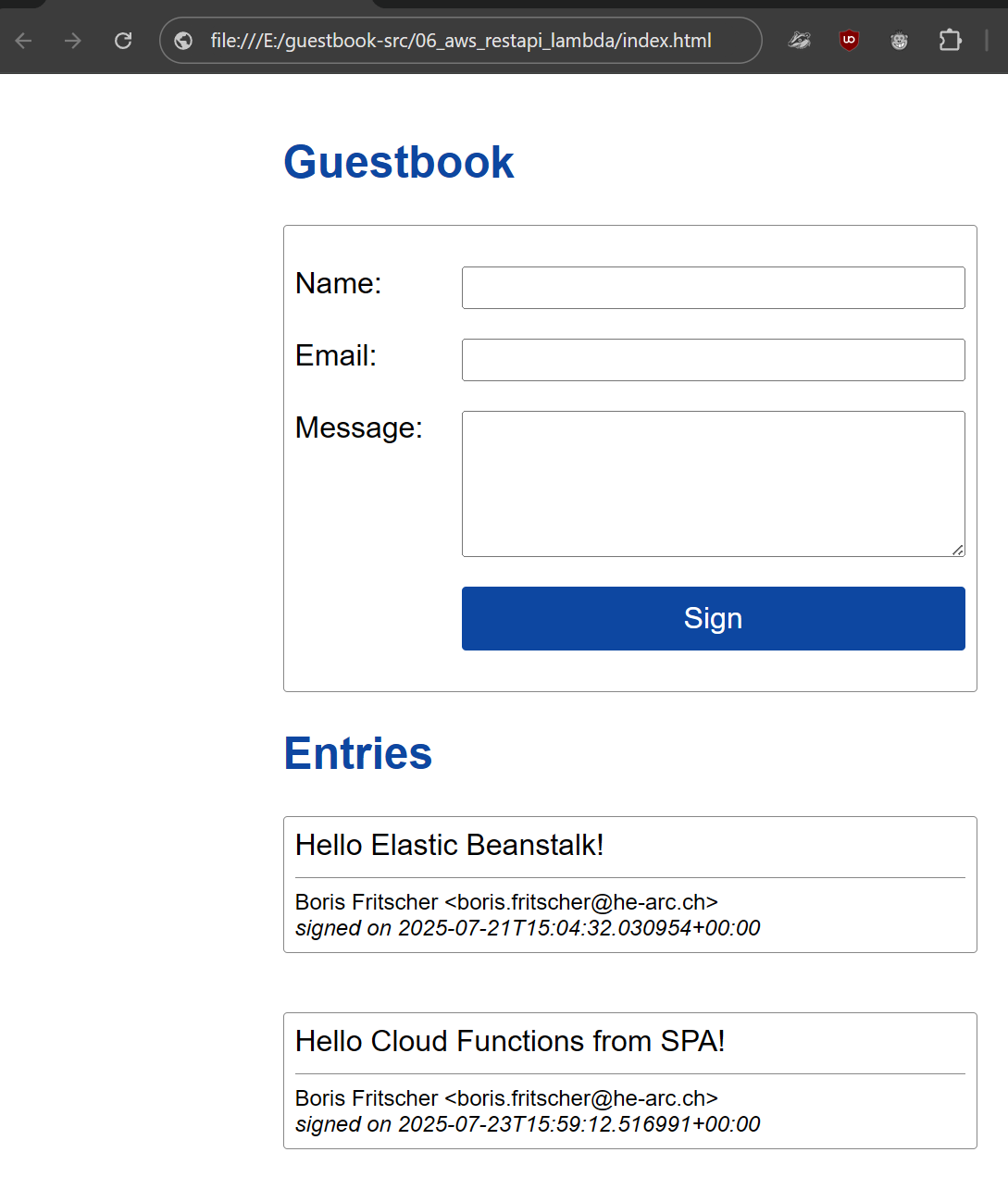
Go to API Gateway service in the AWS console
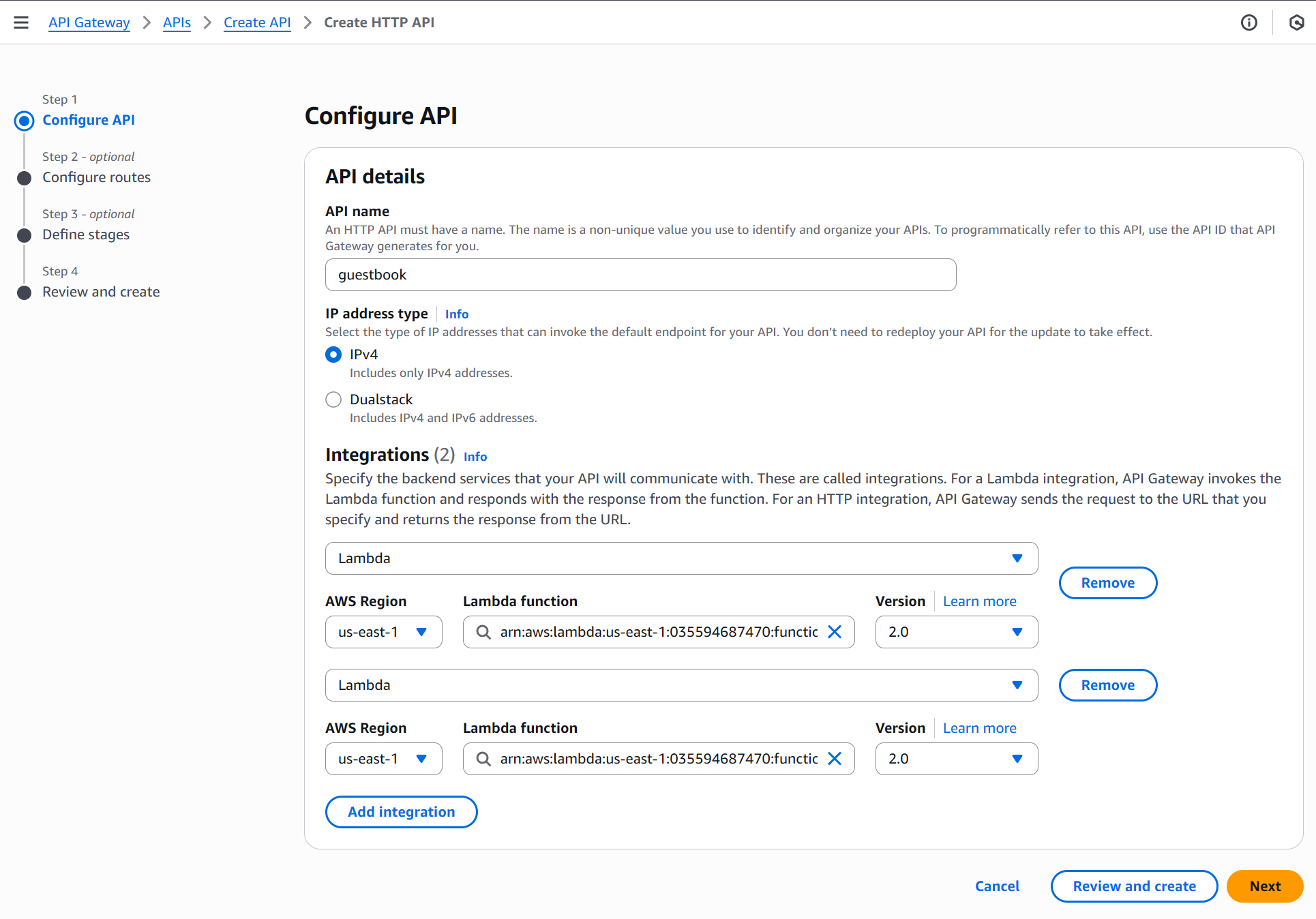
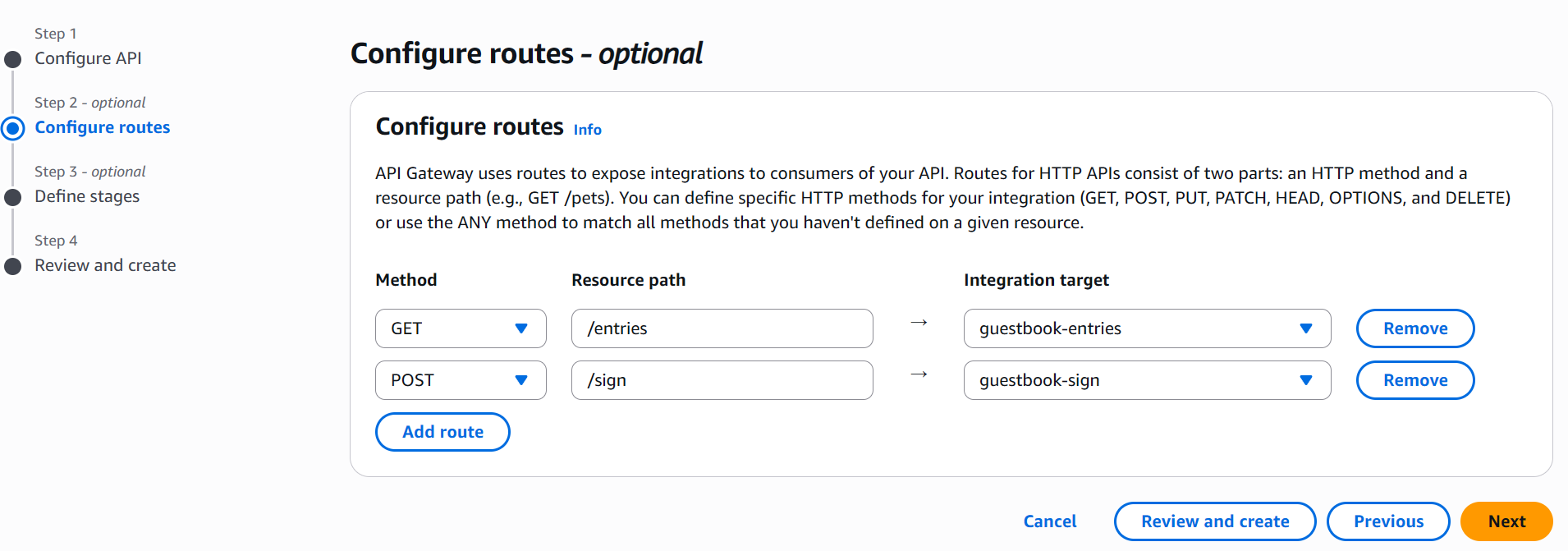
Configure the path and HTTP Methods
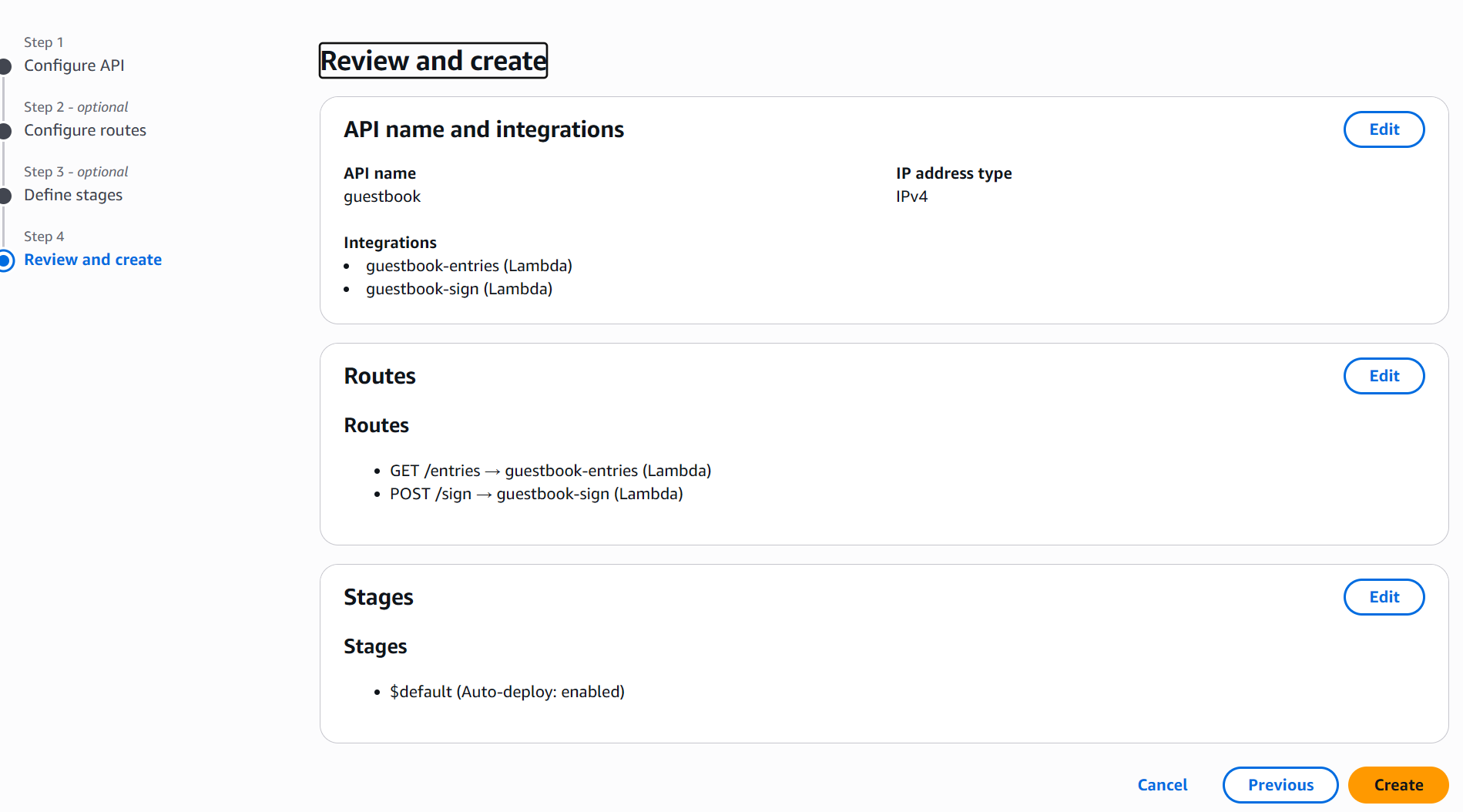
CORS Configuration
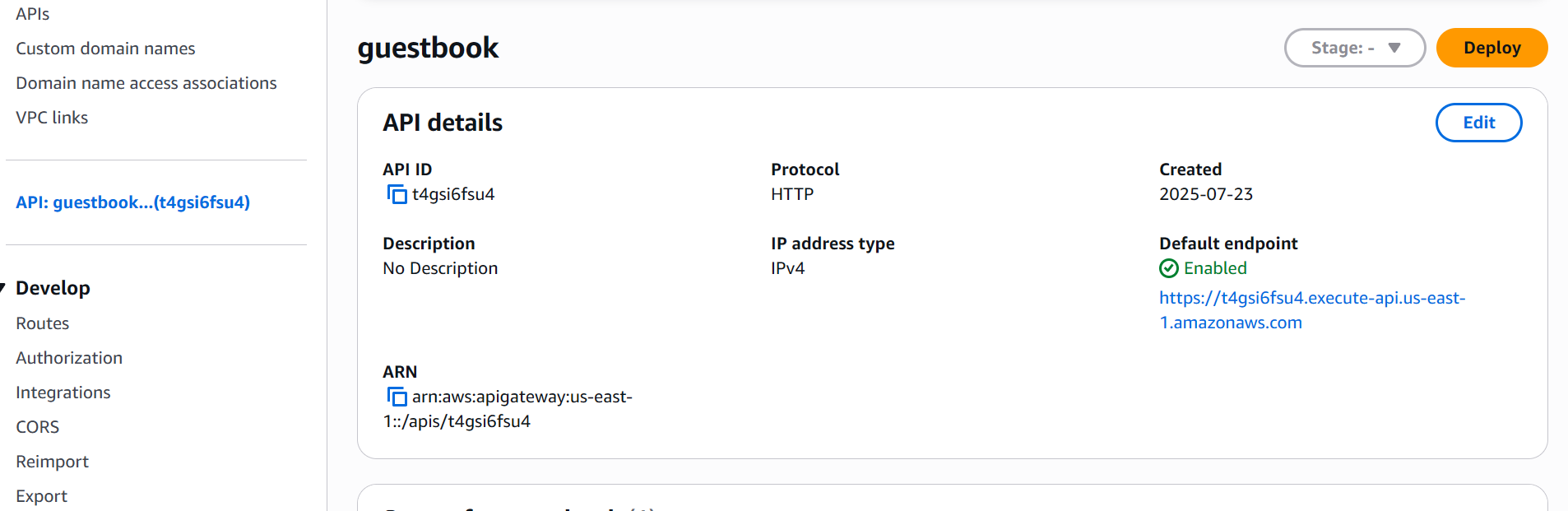
Select the guestbook api and copy the default endpoint
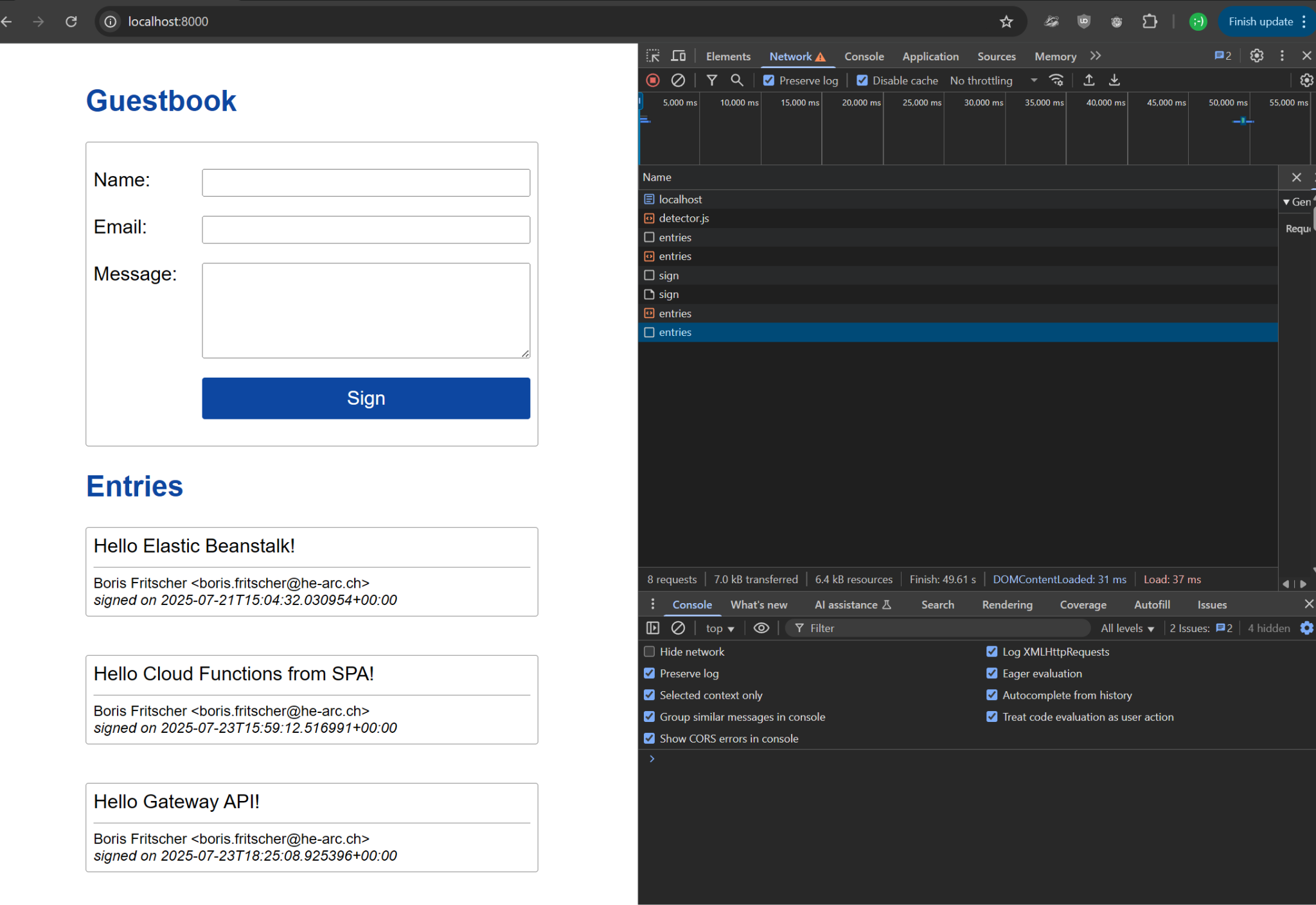
baseApiUrlentriesURLsignURL$ python -m http.server
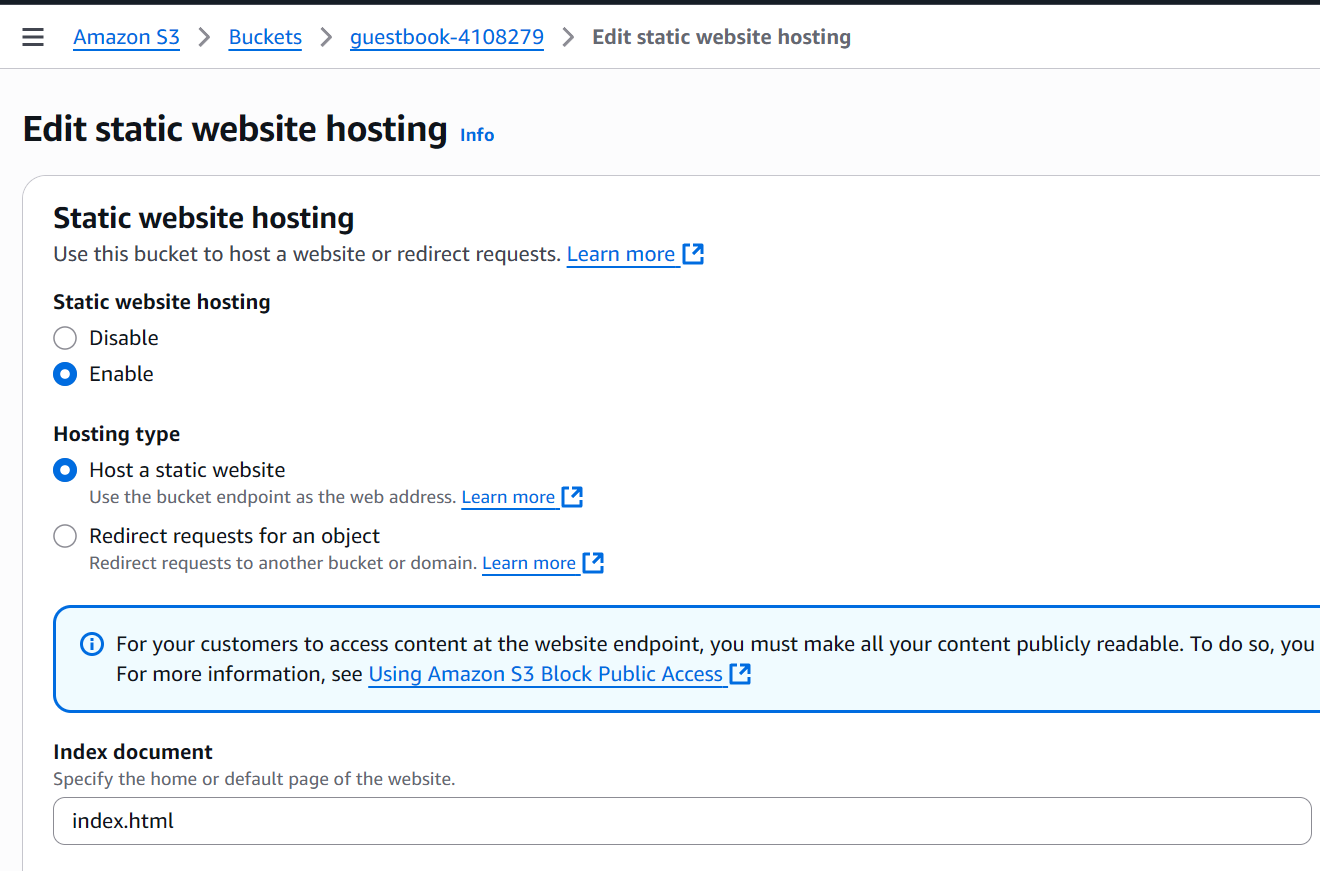
Go to S3 and create a new bucket
On the object tabs upload the index.html file
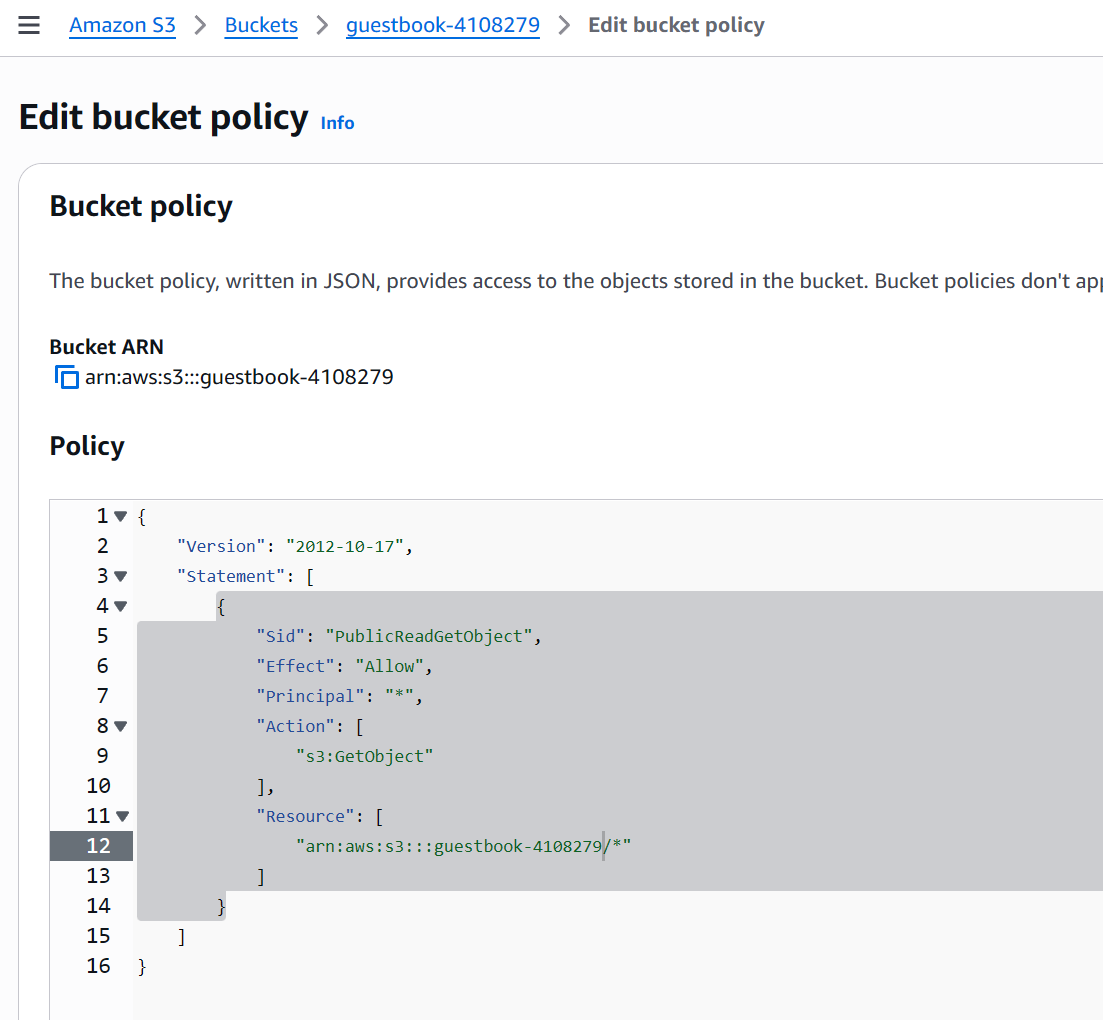
Create a public access Policy
{
"Version": "2012-10-17",
"Statement": [
{
"Sid": "PublicReadGetObject",
"Effect": "Allow",
"Principal": "*",
"Action": [
"s3:GetObject"
],
"Resource": [
"arn:aws:s3:::Bucket-Name/*"
]
}
]
}
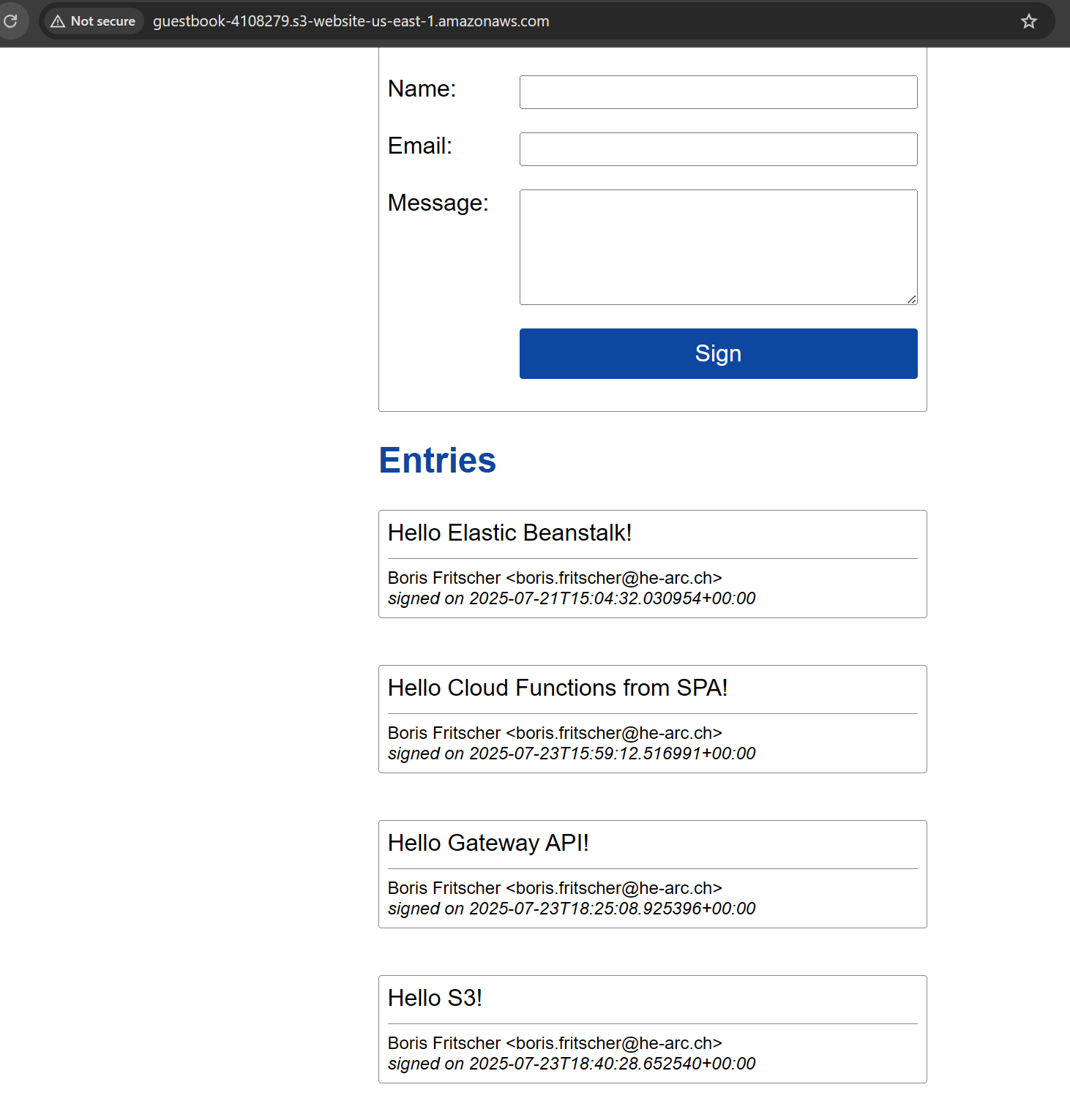
Return to the static website hosting section to copy the public URL
Test the guestbook with a message Hello S3!
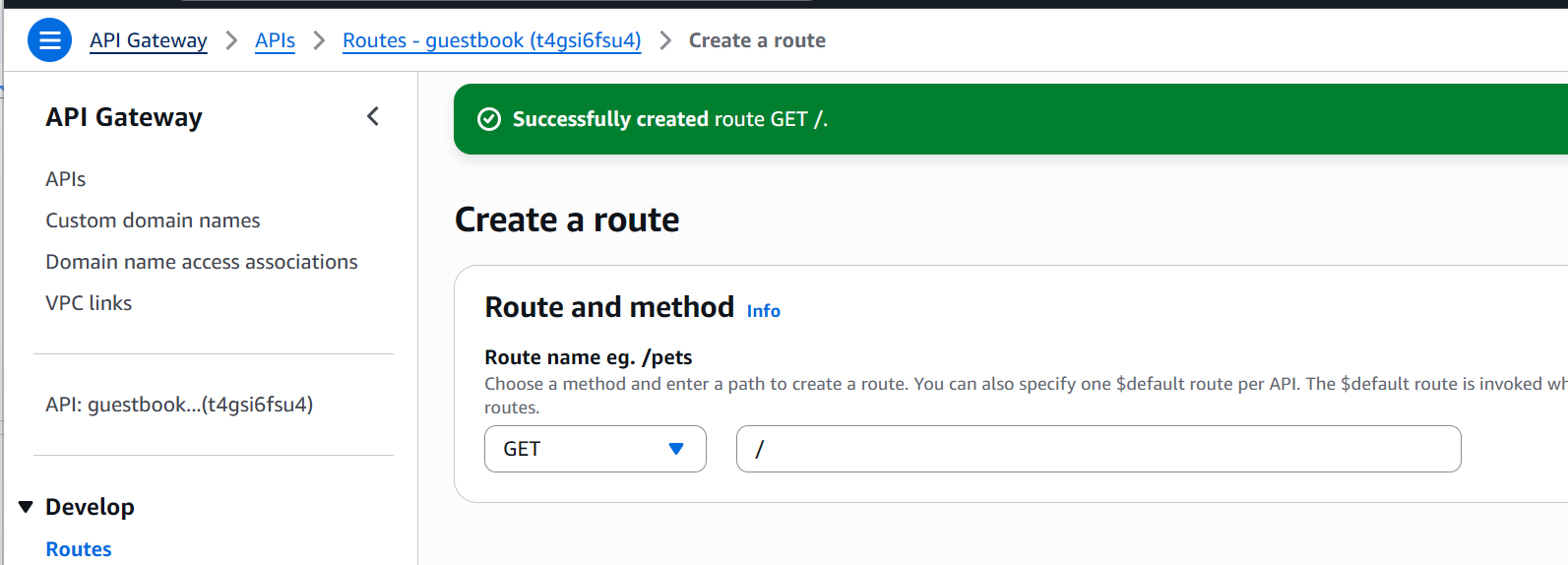
Go back to the API Gateway
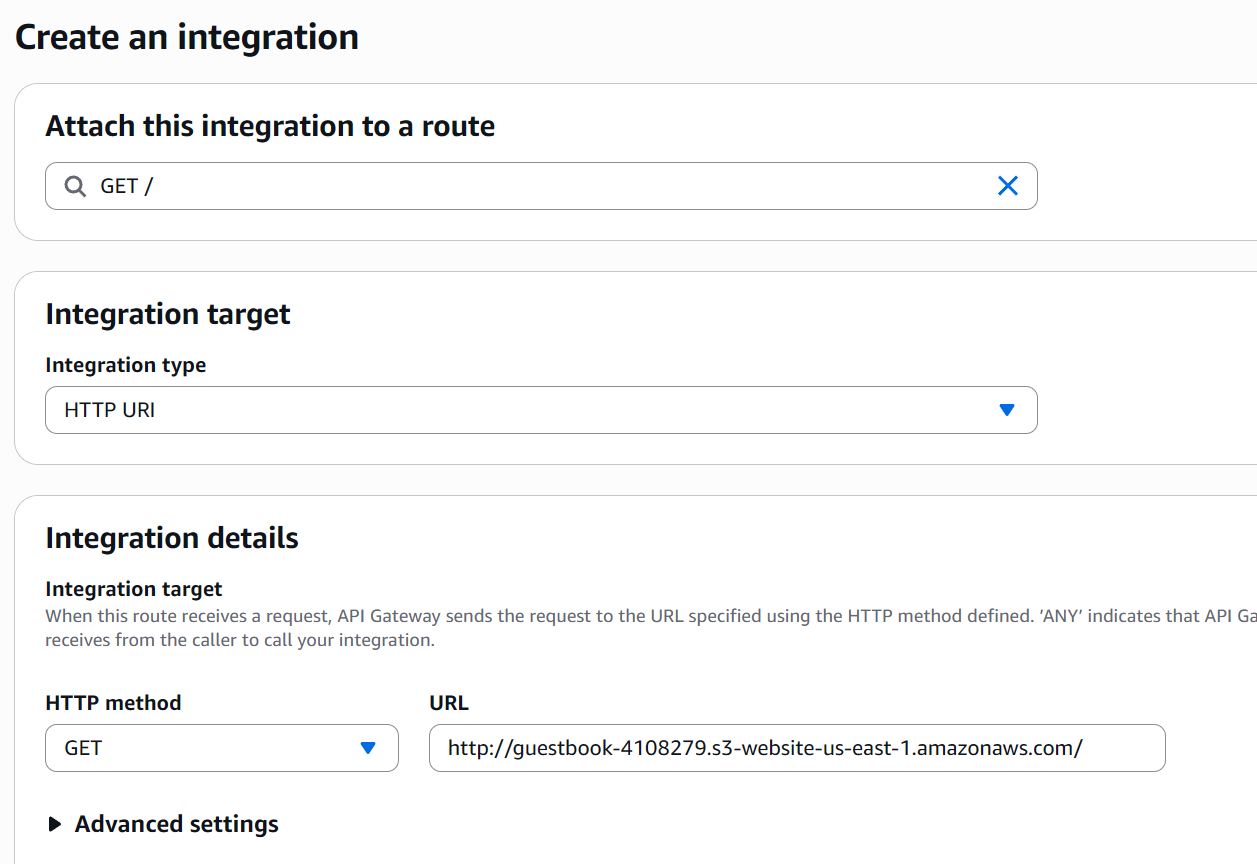
Select the route and attach integration
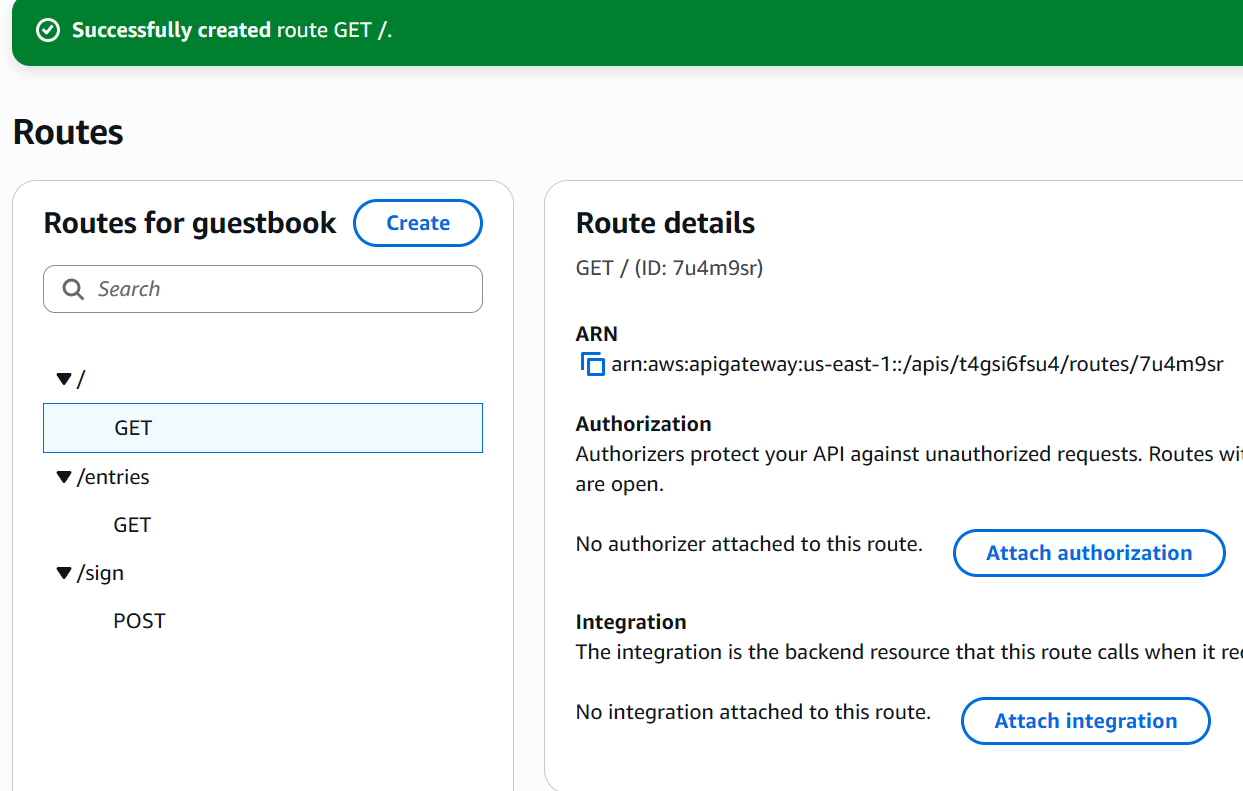
Create a new http integration with endpoint to the S3 public url
Test the API gateway endpoint URL
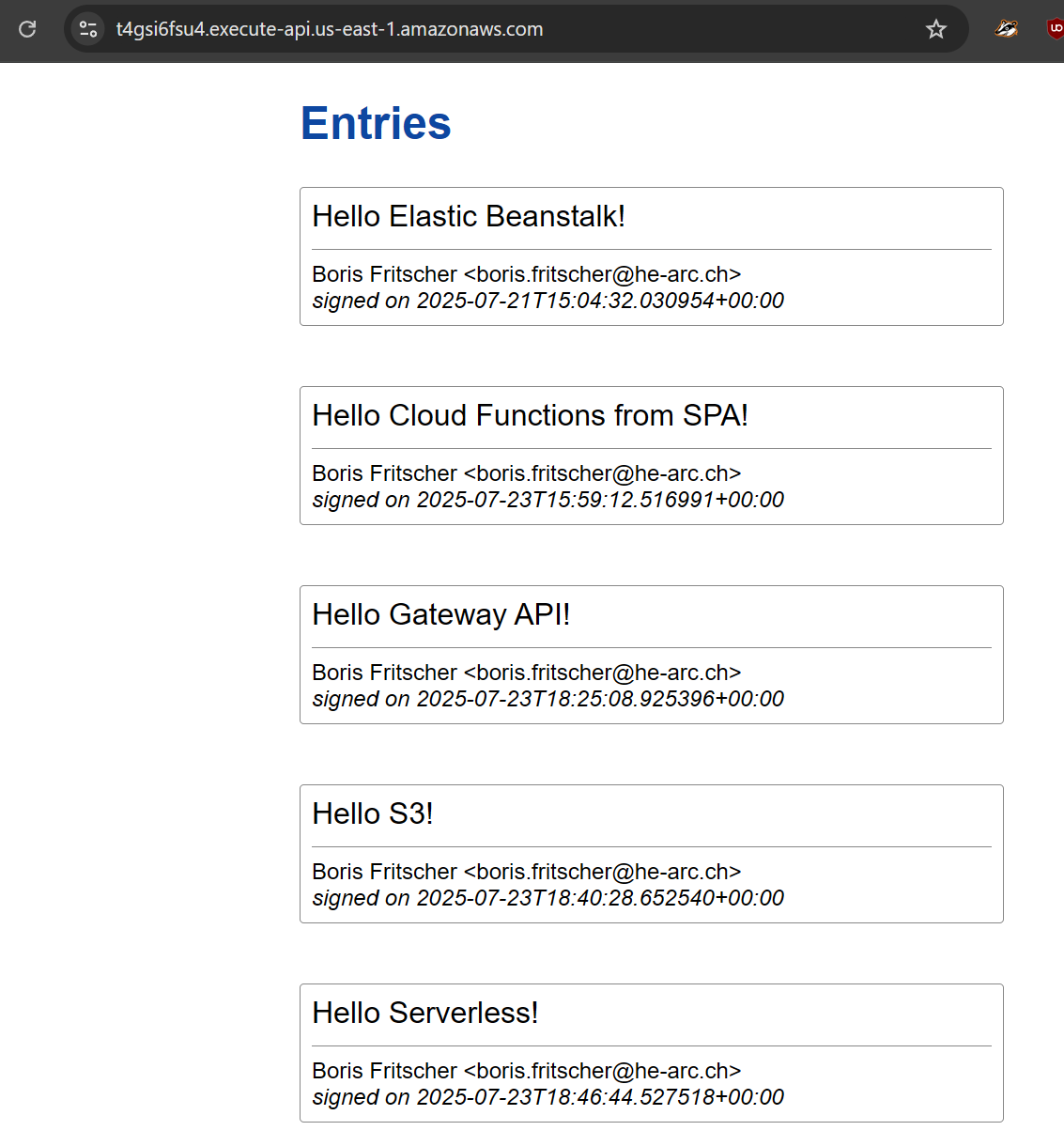
Task Progress Check